In this guide, we have mentioned the key steps of how to integrate Asana into Salesforce using MultiSync Made Easy.
A Step-by-Step Process
Look at the following steps to find the Credential
Step 1:- If you already have an account great otherwise, you can simply create an account from here SignUp
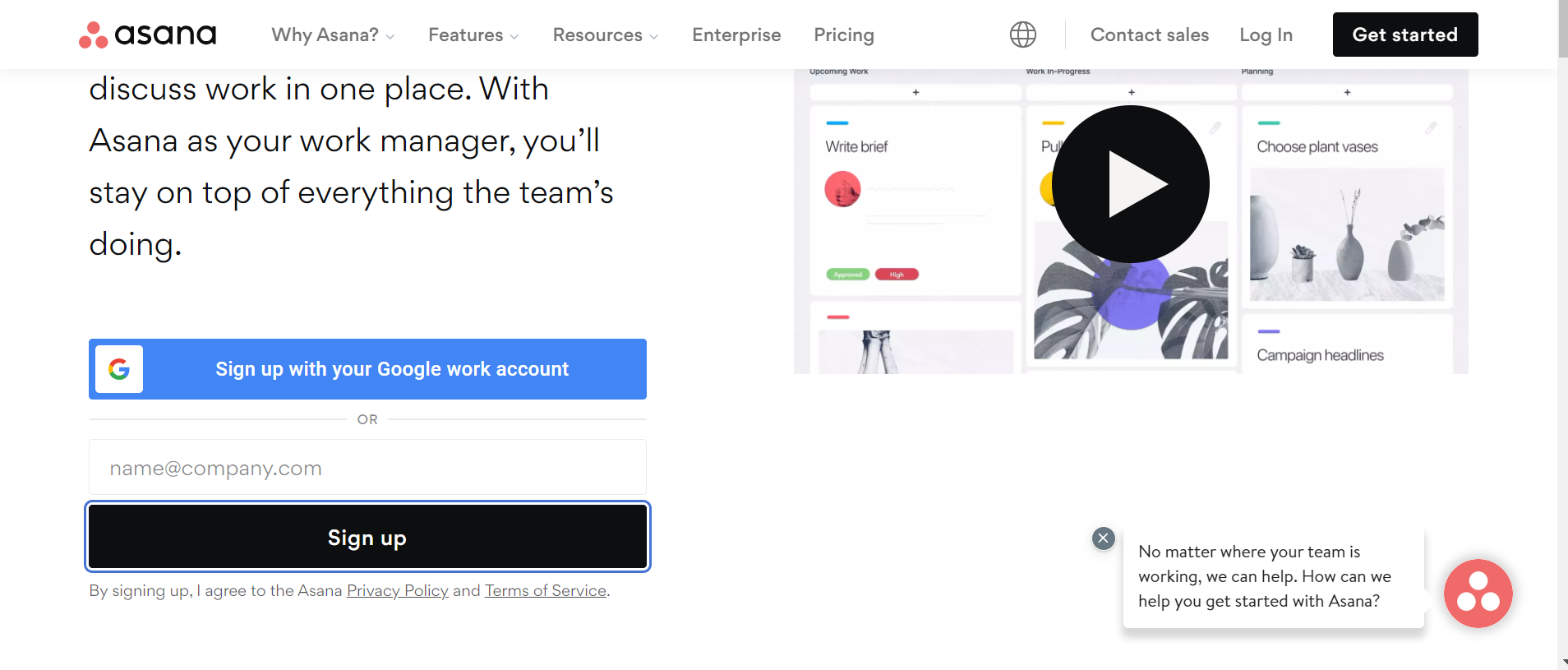
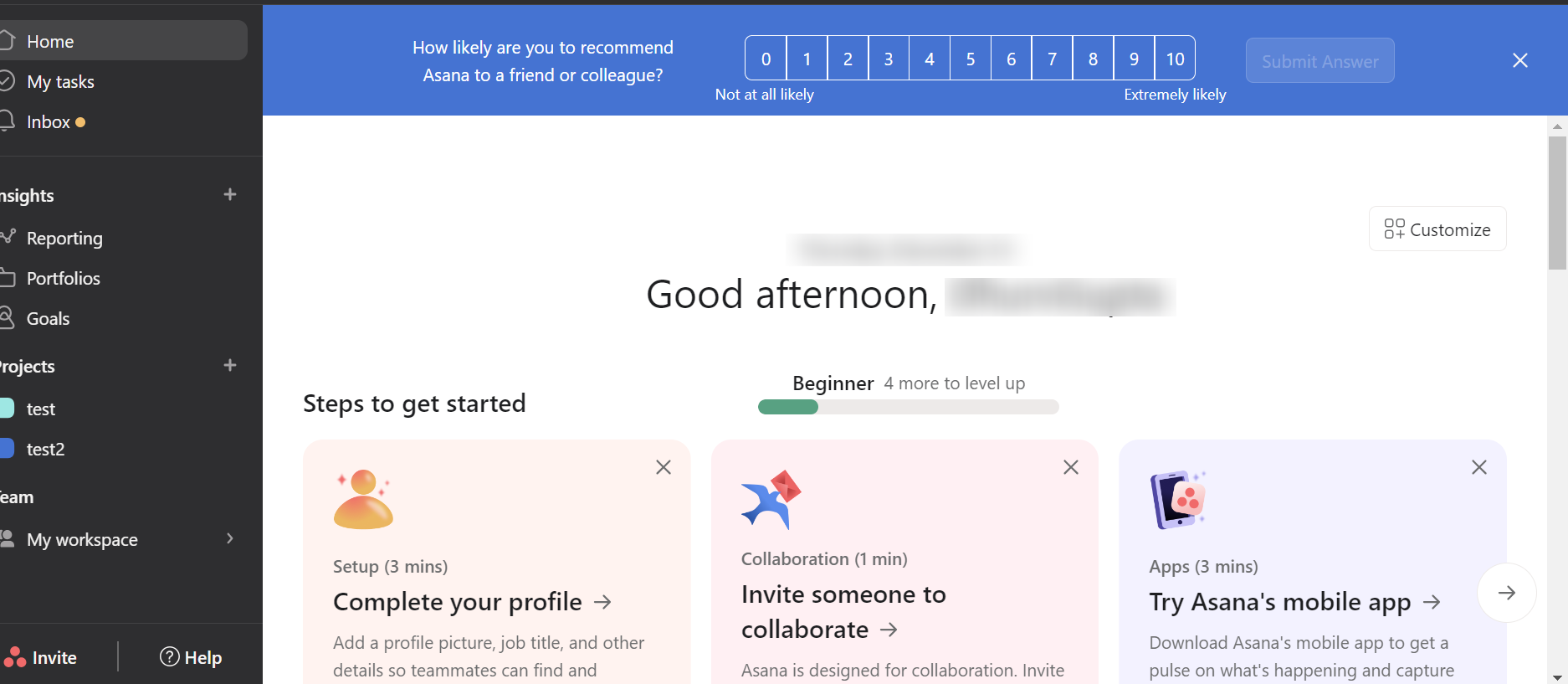
Step 2:- Once you log in, your screen will appear as shown in the screenshot below.
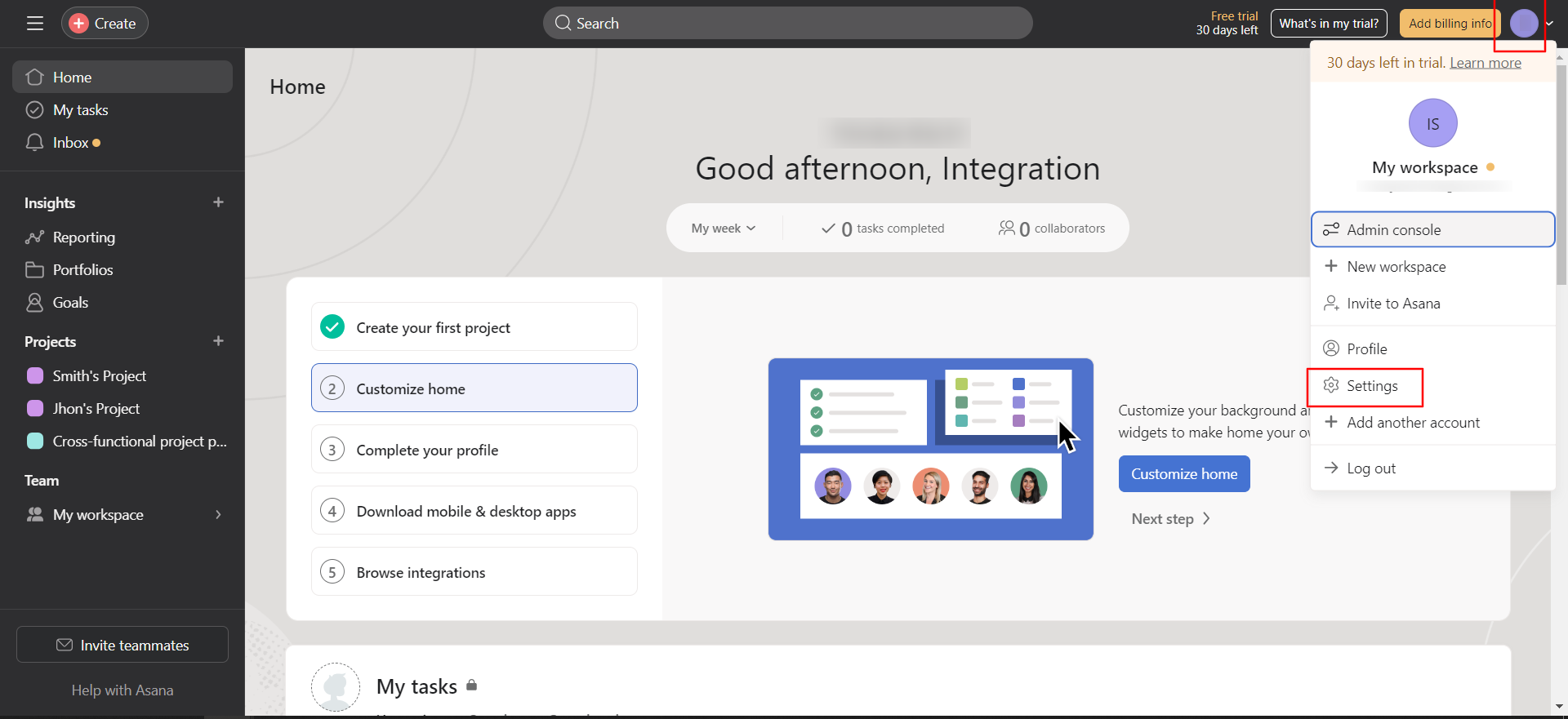
Step 3:- Click on the top right corner of your profile picture icon, and a dropdown will appear from where you’ve to click on “settings”.
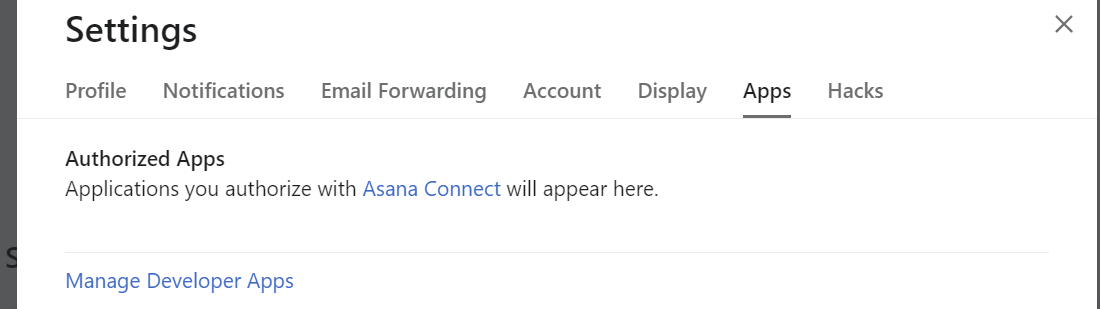
Step 4:- Now, click on the tab titled “Apps” > “Manage Developer Apps” hyperlink.
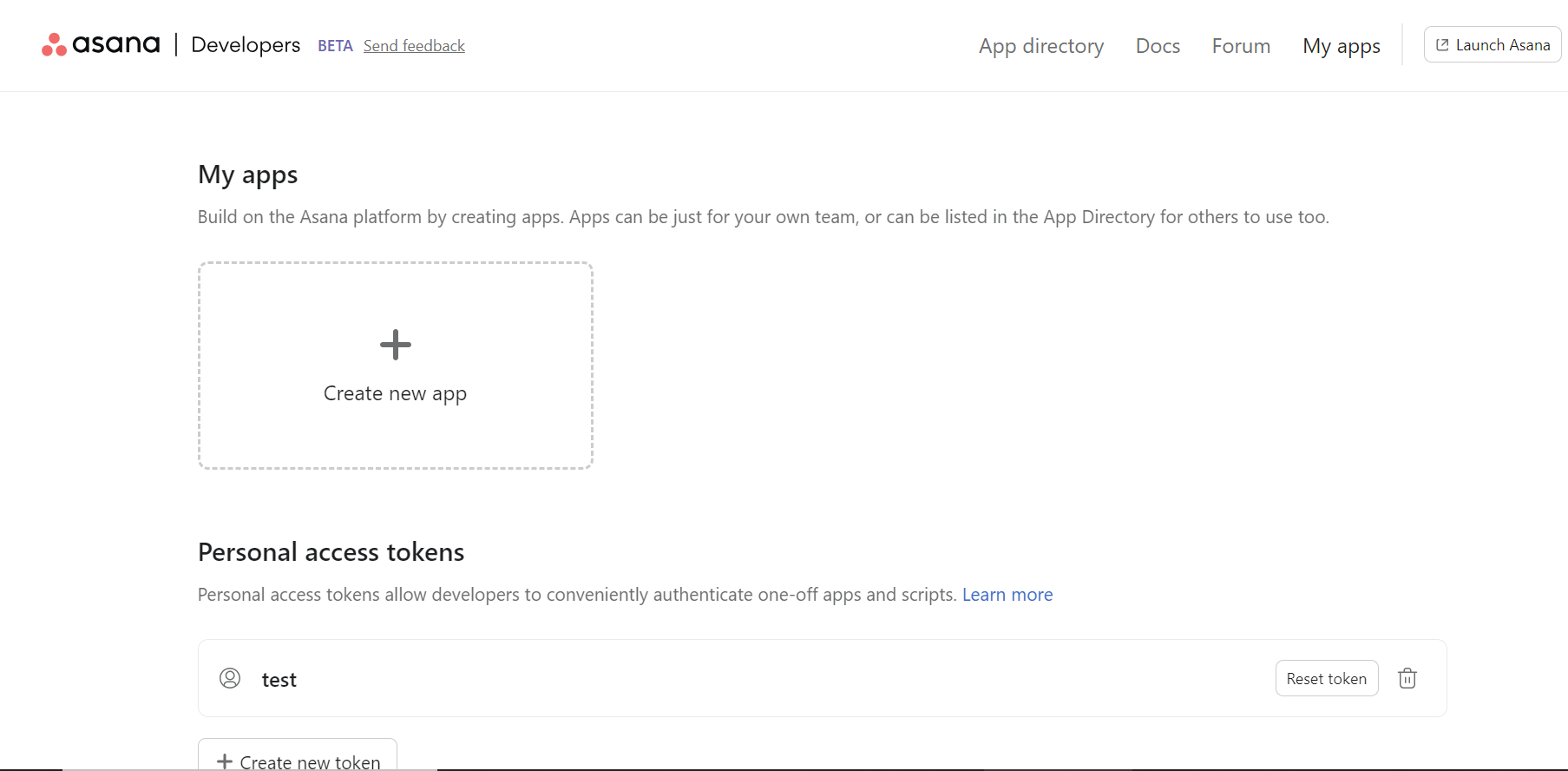
Step 5:- After clicking on it, your screen will look like the one shown below. From there, you need to click on “Create new app.”
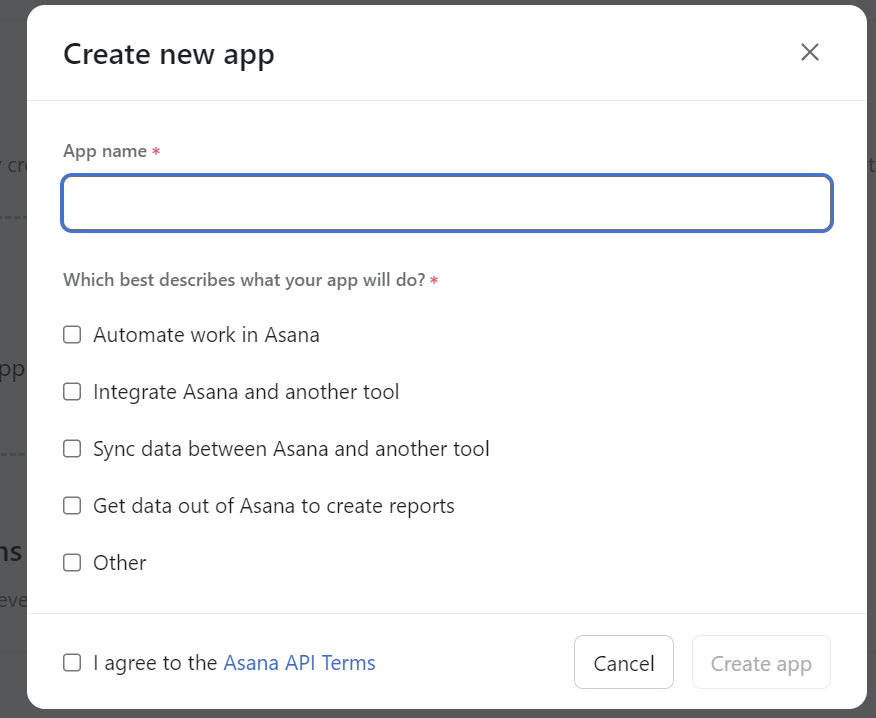
Step 6:- Now, it’s time to give your app a name. Make sure to check all the boxes and tick the box of the Asana API Terms agreement.
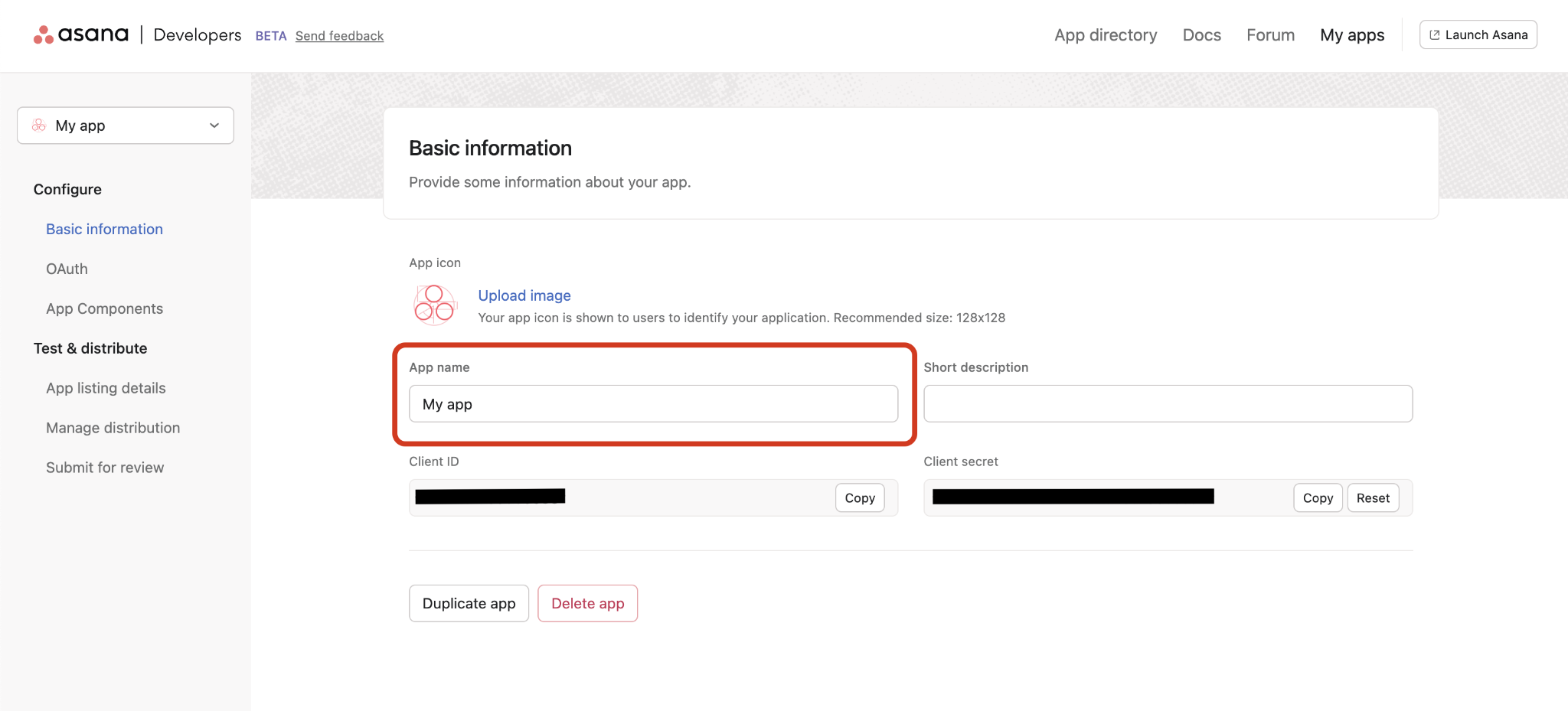
Step 7:- Once your app is created, you will have your “Client ID” and “Client Secret” on the basic information page. Later, click on the 0Auth submenu from the left navigation bar.
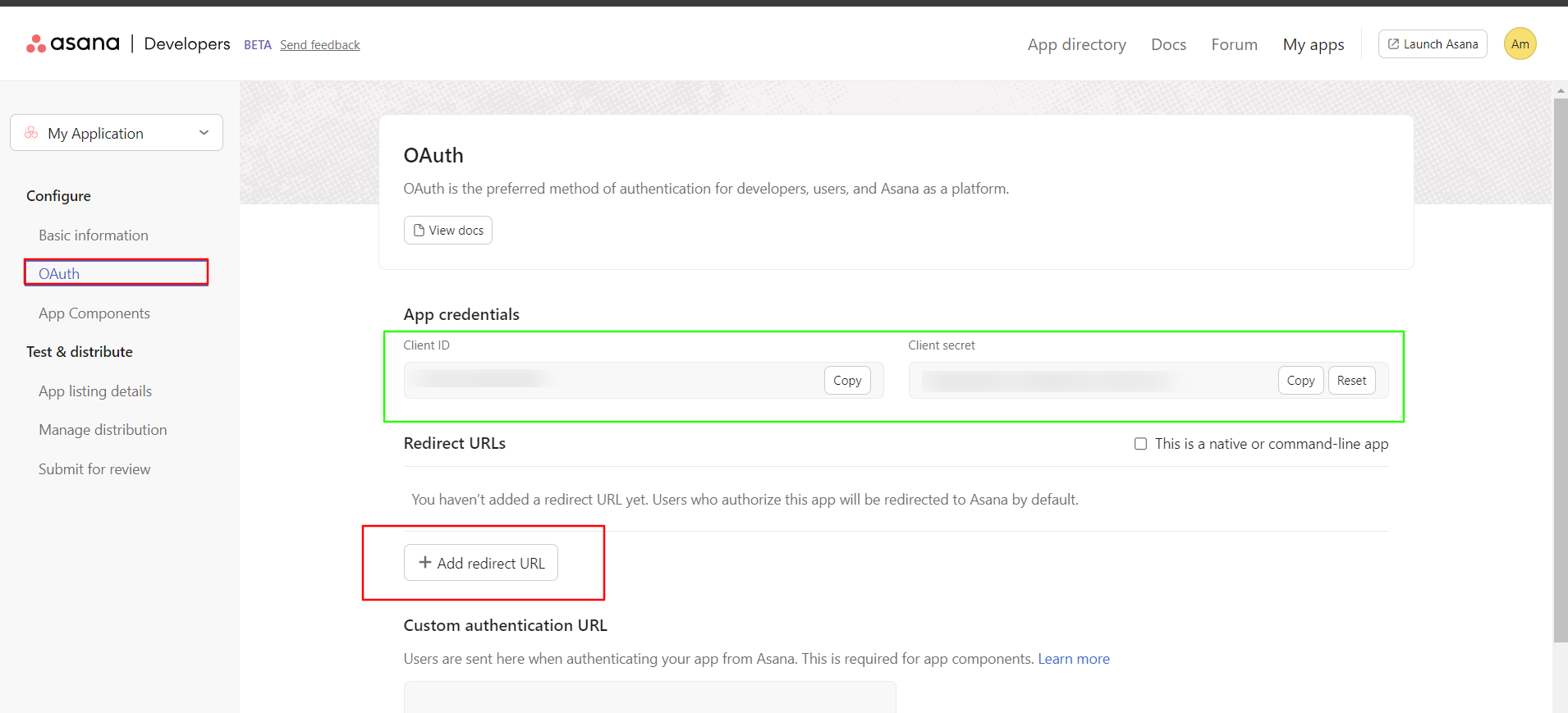
Step 8:- Add the redirect URL by copying it from “MultiSync Made Easy” app. Then you can collect "Client Id" and "Client Secret" from App credentials section.
Here is the Api Reference link : https://developers.asana.com/reference/rest-api-reference
Conclusion
This is our strategic guide to integrating with Asana . You can explore the app at your convenience, and if you need any further assistance, please contact our Support team.
Was this article helpful?
That’s Great!
Thank you for your feedback
Sorry! We couldn't be helpful
Thank you for your feedback
Feedback sent
We appreciate your effort and will try to fix the article