In this guide, we have mentioned the key steps of how to integrate LinkedIn into Salesforce using MultiSync Made Easy.
A Step-by-Step Process
Look at the following steps to find the Credential
Step 1:- Visit the LinkedIn Developer Portal and create a new app under My Apps.
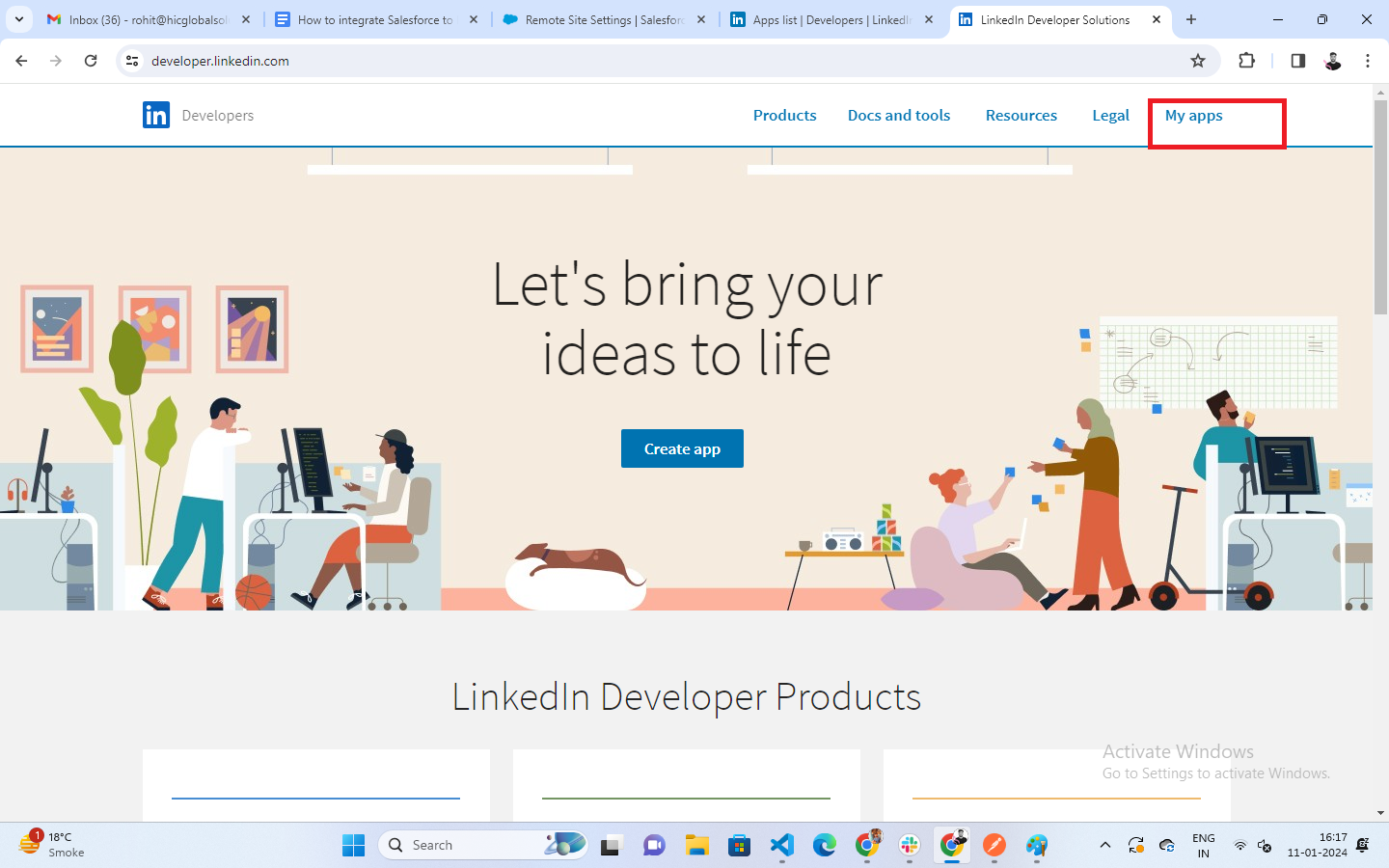
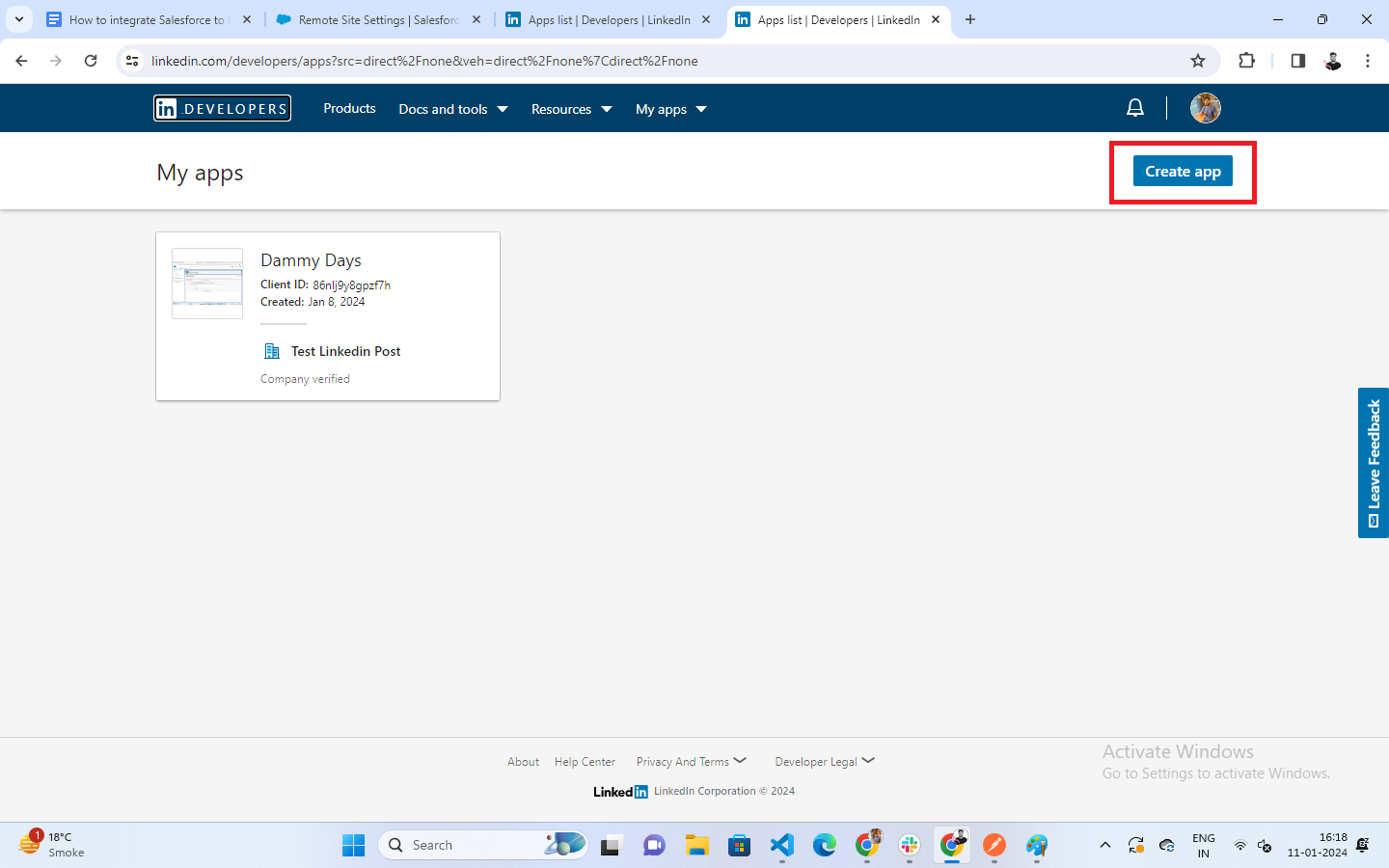
Step 2:- Click on Create App to start setting up your LinkedIn application.
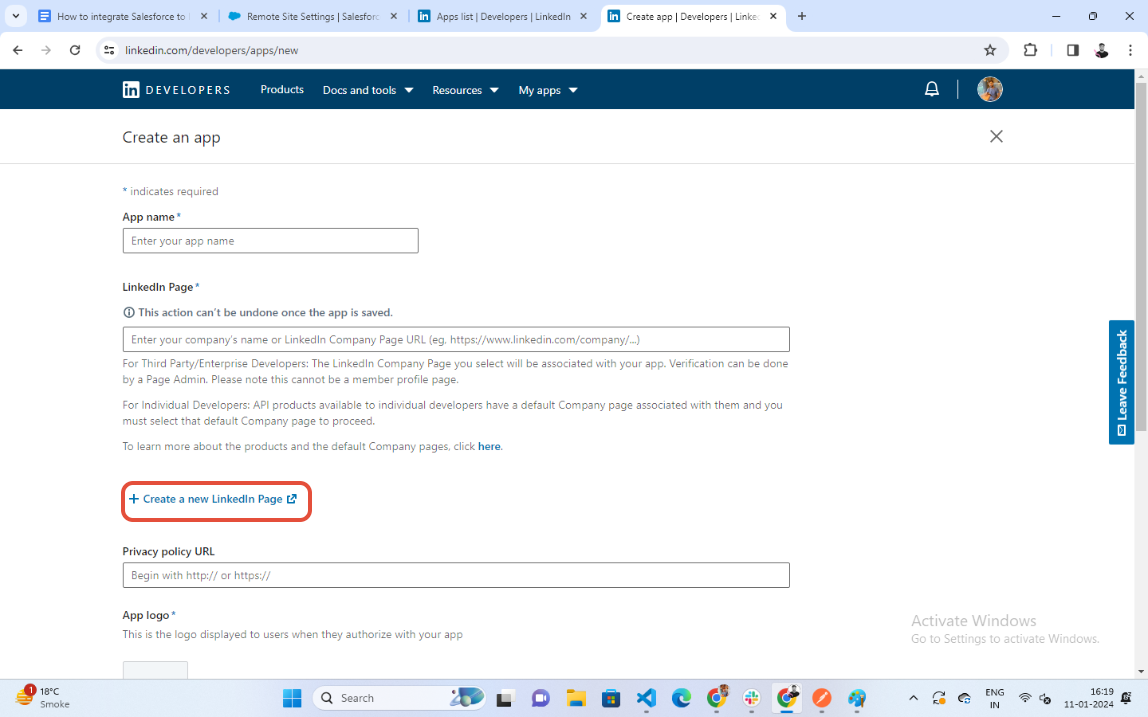
Step 3:- Enter the required details, then click Create a new LinkedIn Page to complete the setup.
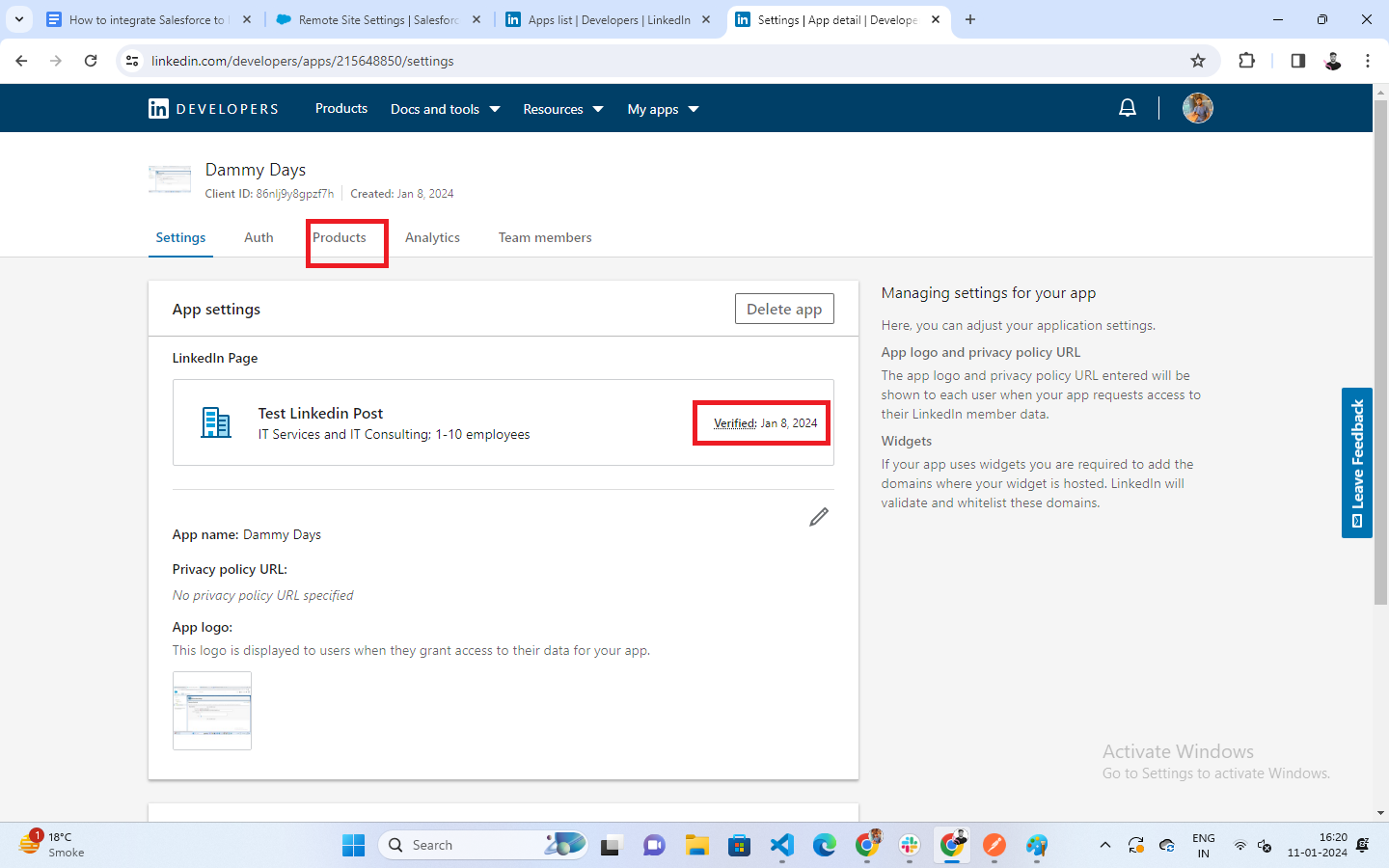
Step 4:- After completing the process, your LinkedIn page will be created. Next, verify the page by signing in, and then click
on the Products tab.
Step 5:- In the Product tab, request access for “Share on LinkedIn” and “Sign In with LinkedIn” using OpenID Connect
Next navigate to the Auth tab to obtain your Client ID and Client Secret.
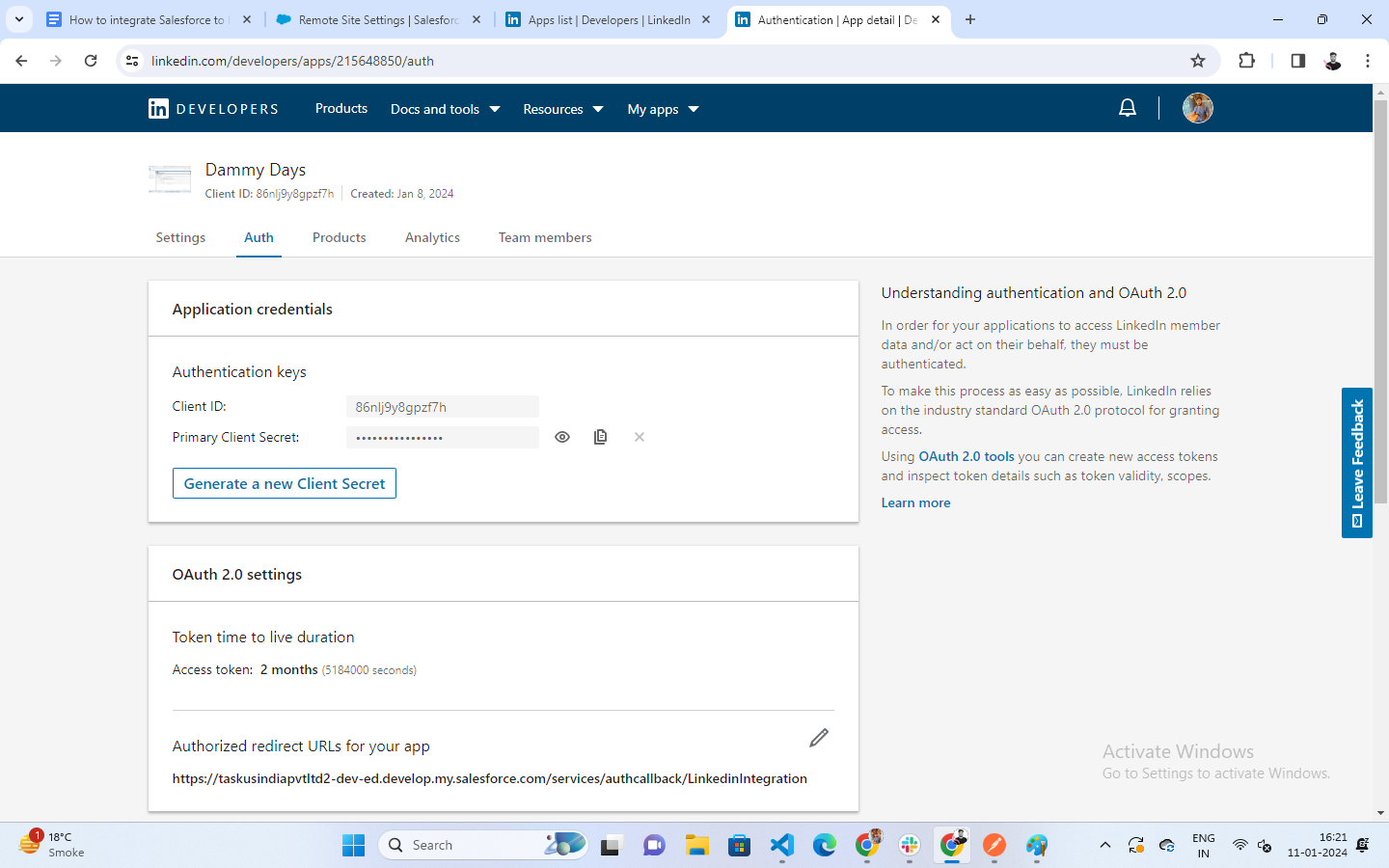
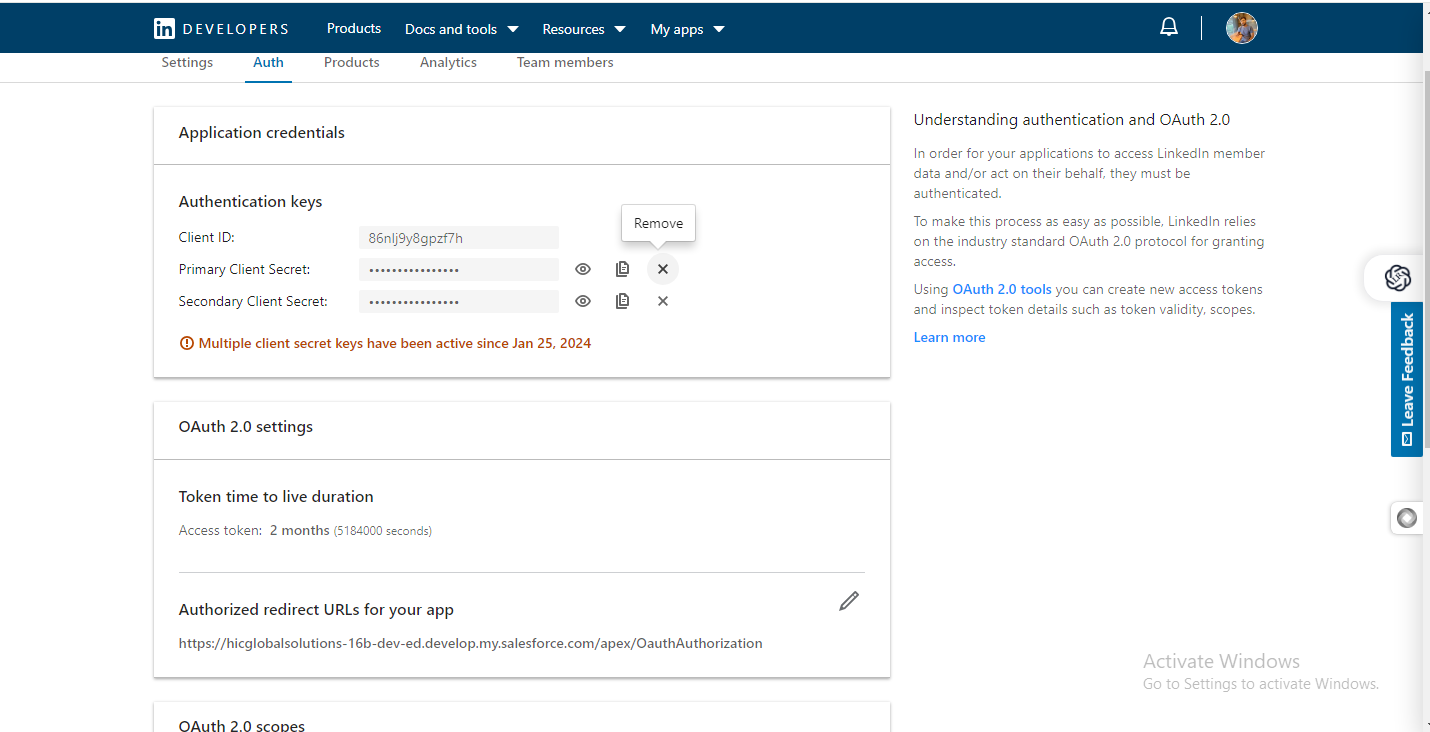
Step 6:- Add the provided redirect URL to your LinkedIn app.
Conclusion
This is our strategic guide to integrating with LinkedIn. You can explore the app at your convenience, and if you need any further assistance, please contact our Support team.
Was this article helpful?
That’s Great!
Thank you for your feedback
Sorry! We couldn't be helpful
Thank you for your feedback
Feedback sent
We appreciate your effort and will try to fix the article