In this guide, we have mentioned the key steps of how to integrate Zoho CRM into Salesforce using MultiSync Made Easy.
A Step-by-Step Process
Look at the following steps to find the Credentials
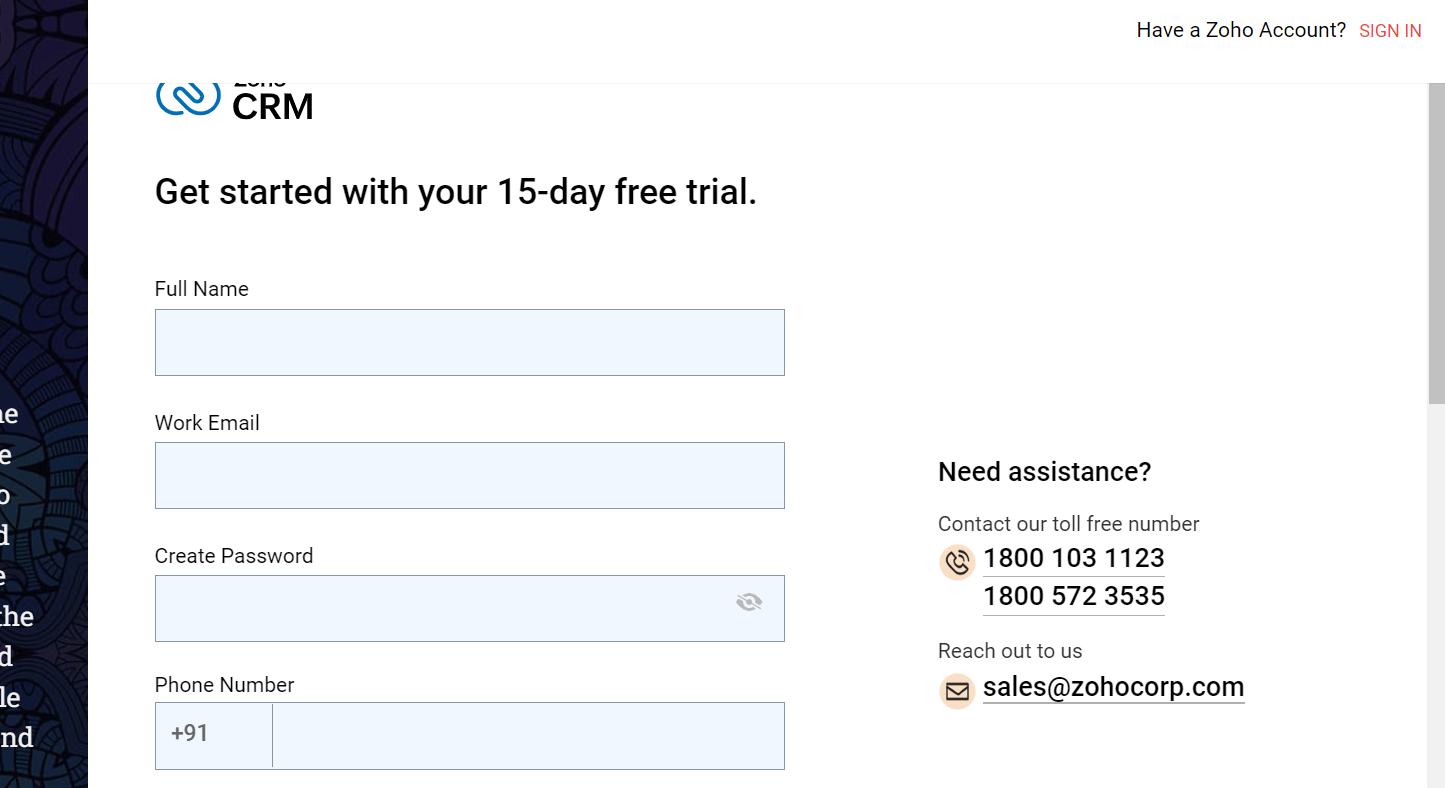
Step 1:- First, if you already have an account, sign in. If not, create a new account for Zoho CRM and Log in.
Signup Link: https://www.zoho.com/crm/signup.html
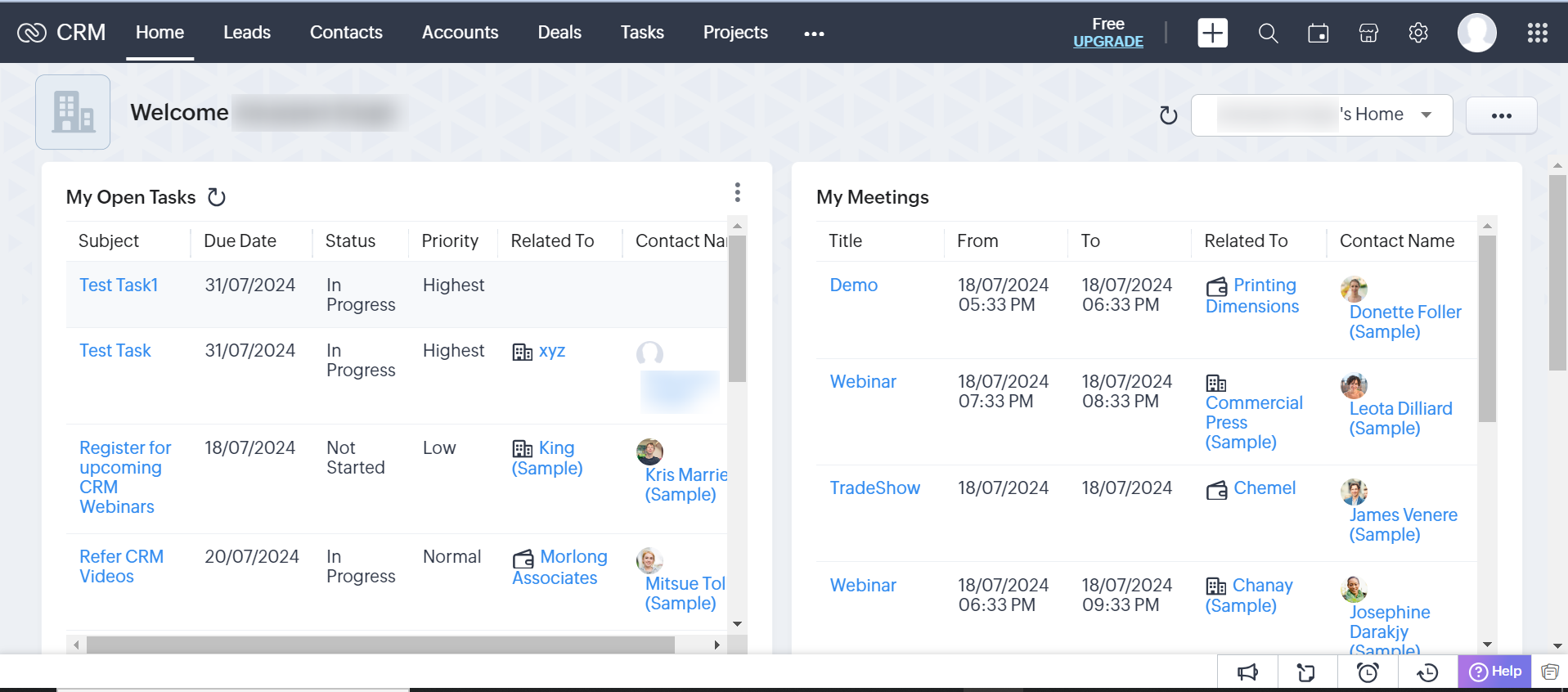
Step 2 :- After logging in, you will see a screen like this:
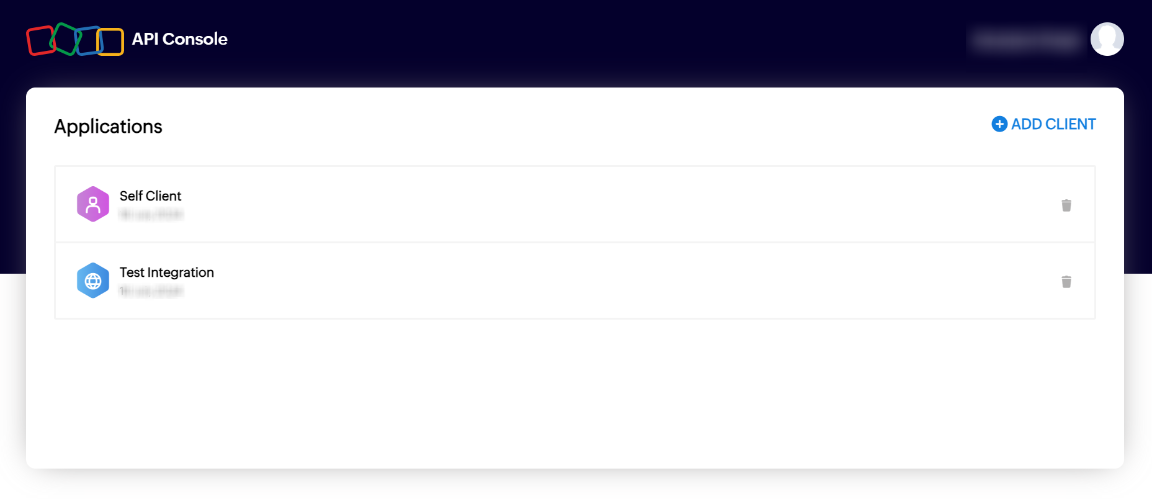
Step 3 :- Next, you need to register an application to get API credentials.
App Registration Link: https://api-console.zoho.in/
Note:
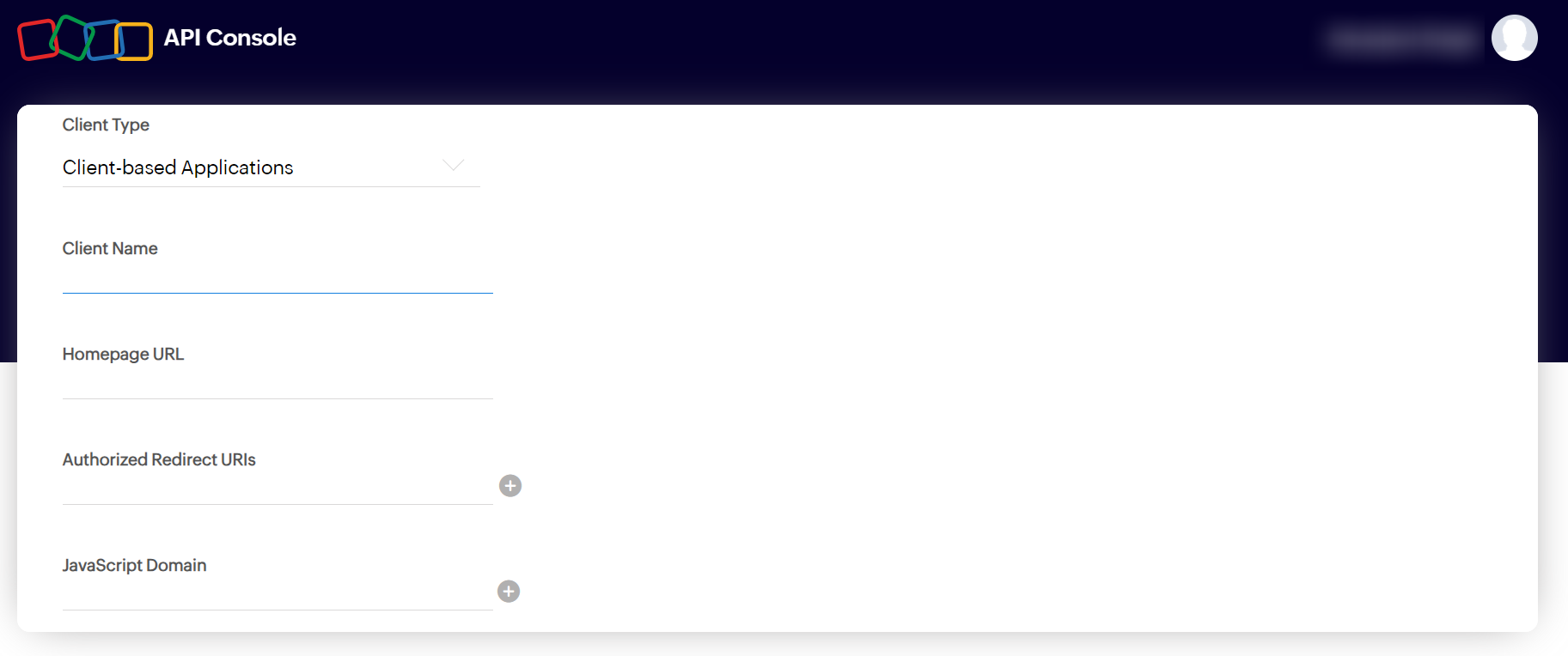
Click “Add Client” to register, then fill in all the required details to proceed and obtain your API credentials.
Note:
Here, you can set both the Redirect URL and Home Page URL to be the same.
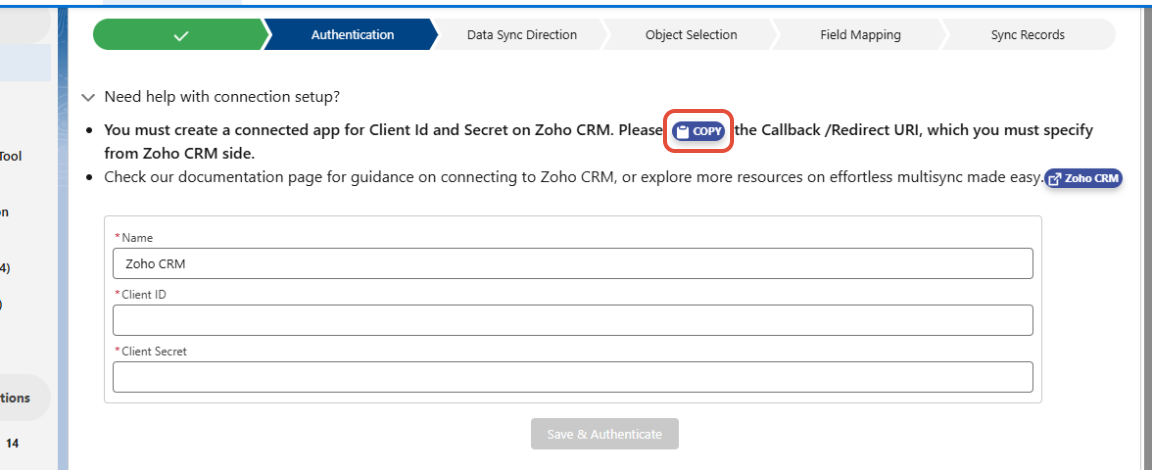
To add the Authorized Redirect URL, copy the Callback URL from Salesforce during the authentication process and paste it into the “Authorized Redirect URL” field.
For your reference, you can get the Callback URL by clicking the “Copy” button, as shown in the screenshot below.
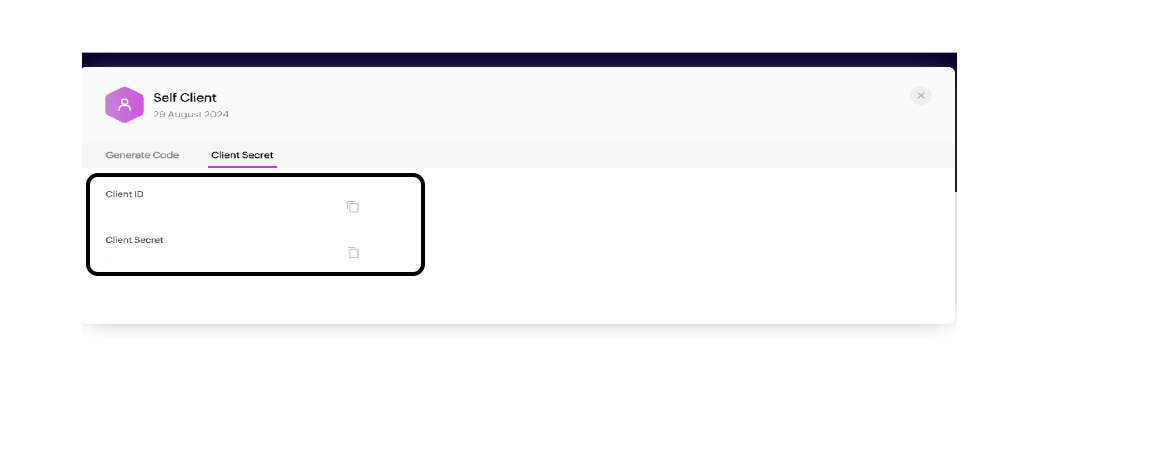
After adding the client, you will receive the Client ID and Client Secret.
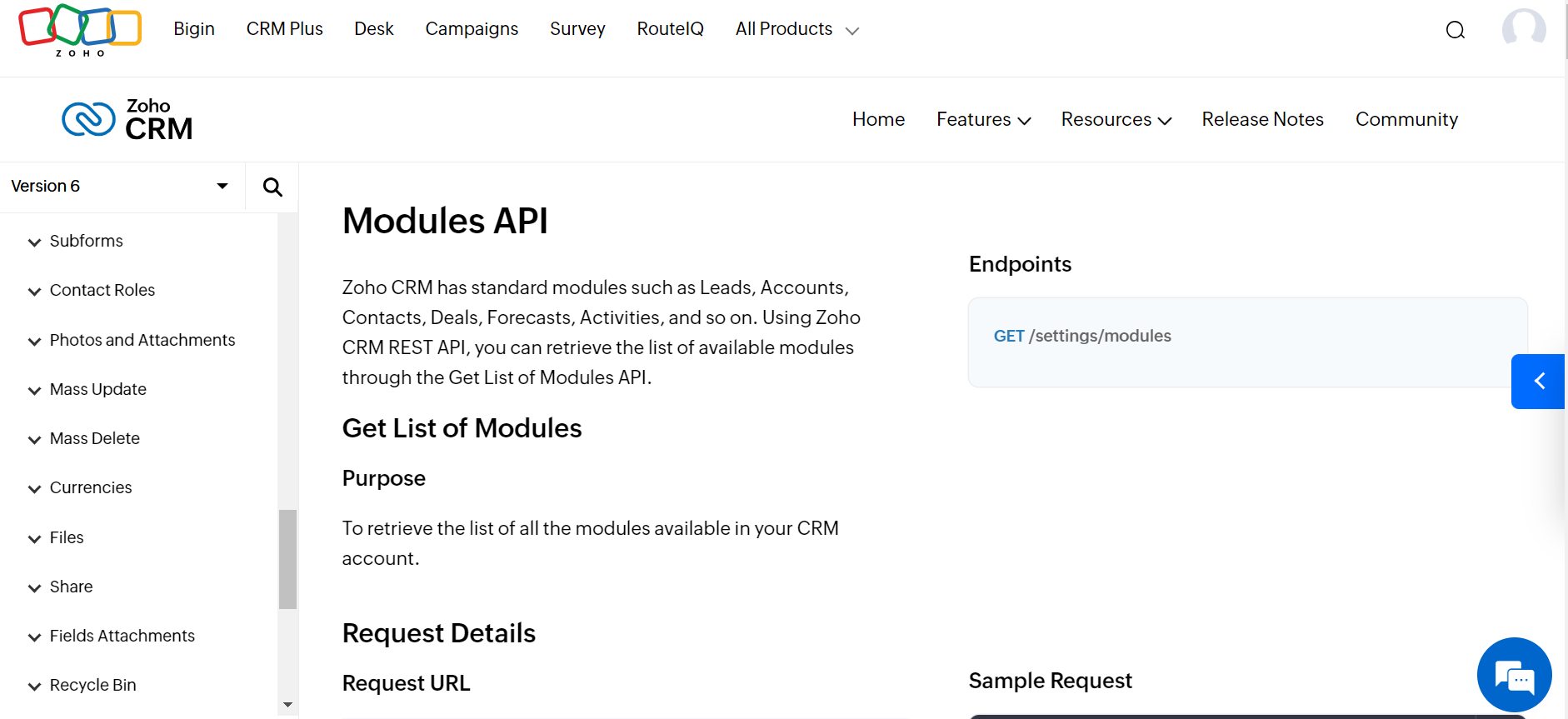
Reference Link for your API Request : Reference Link for your API Request : https://www.zoho.com/crm/developer/docs/api/v6/modules-api.html
Conclusion
This is our strategic guide to integrating with Zoho CRM. You can explore the app at your convenience, and if you need any further assistance, please contact our Support team.
Was this article helpful?
That’s Great!
Thank you for your feedback
Sorry! We couldn't be helpful
Thank you for your feedback
Feedback sent
We appreciate your effort and will try to fix the article