In this guide, we have mentioned the key steps of how to integrate Pipeline into Salesforce using MultiSync Made Easy.
A Step-by-Step Process
Look at the following steps to find the Credential
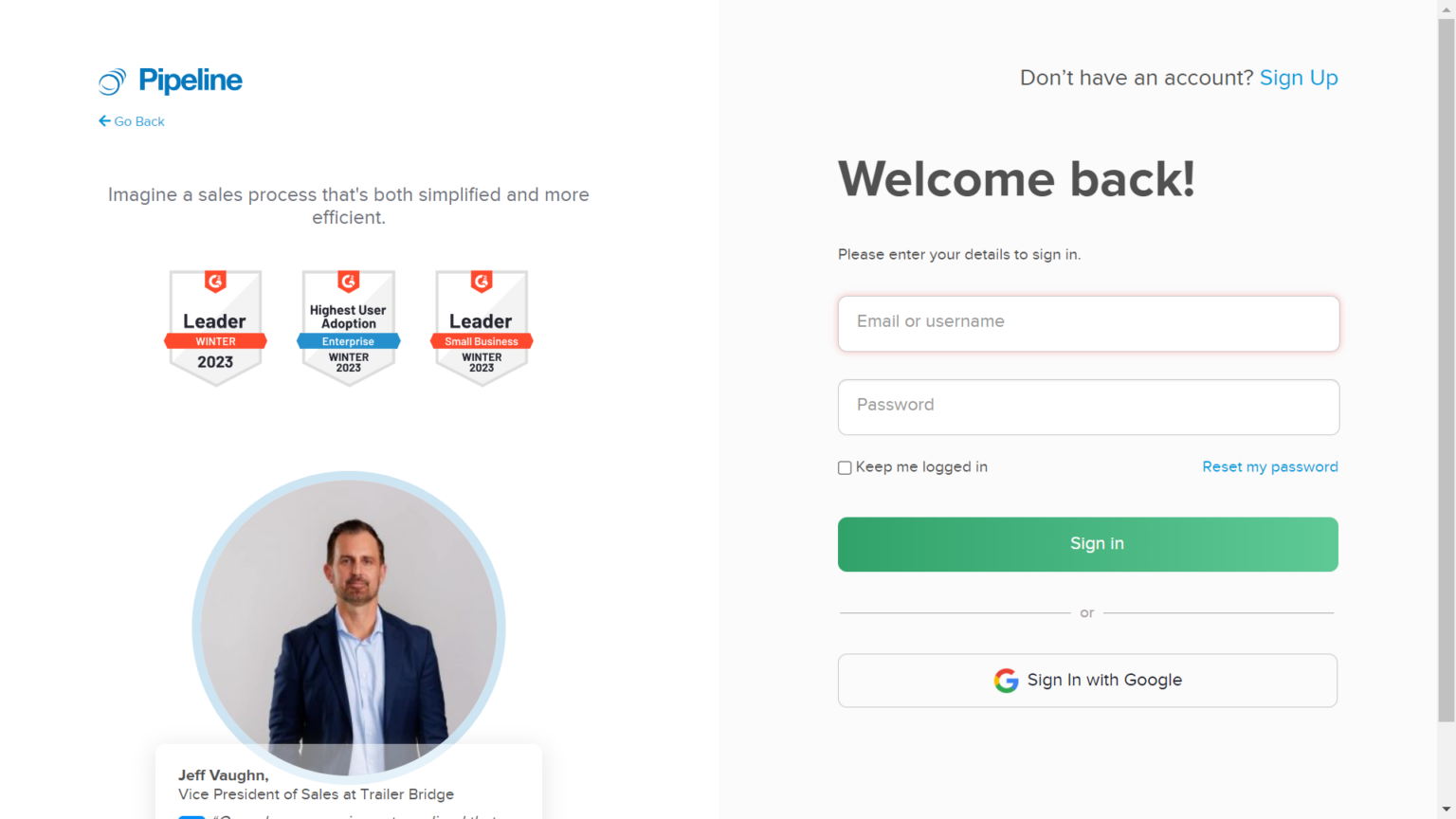
Step 1:- First, sign in to your Pipeline account and If you don’t have one, create a new account from here.
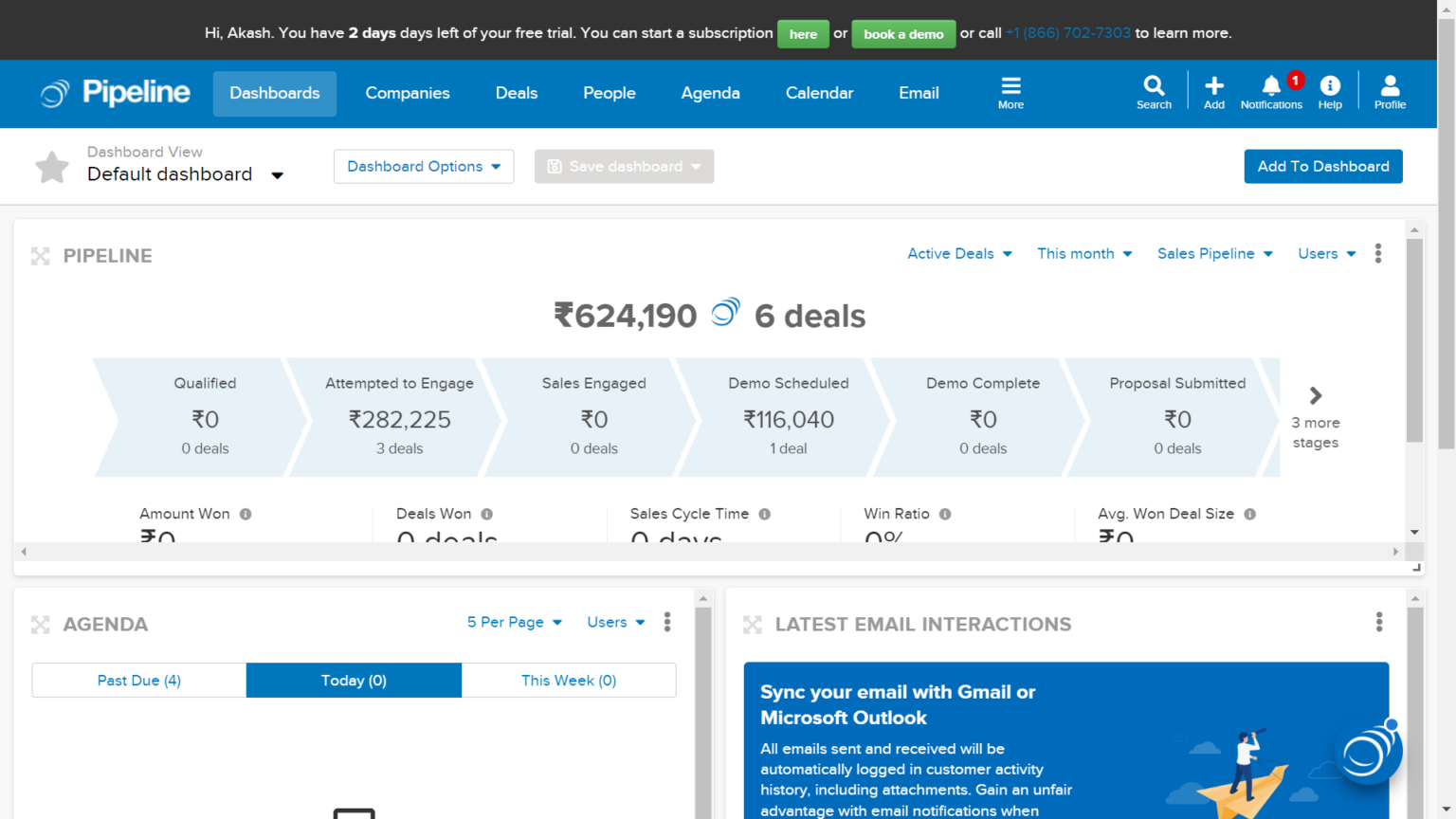
Step 2:- After logging into your account, you’ll see the dashboard like this.
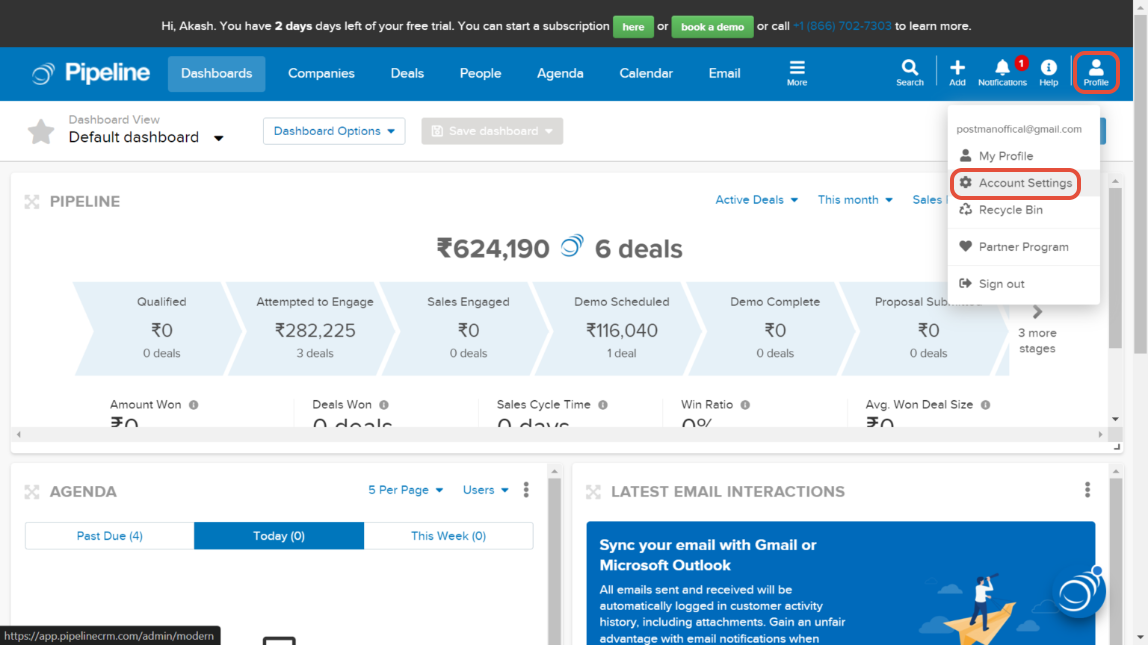
Step 3:- To collect your credentials, click on Profile > Account Settings.
Step 4:- Then navigate to API Integration.
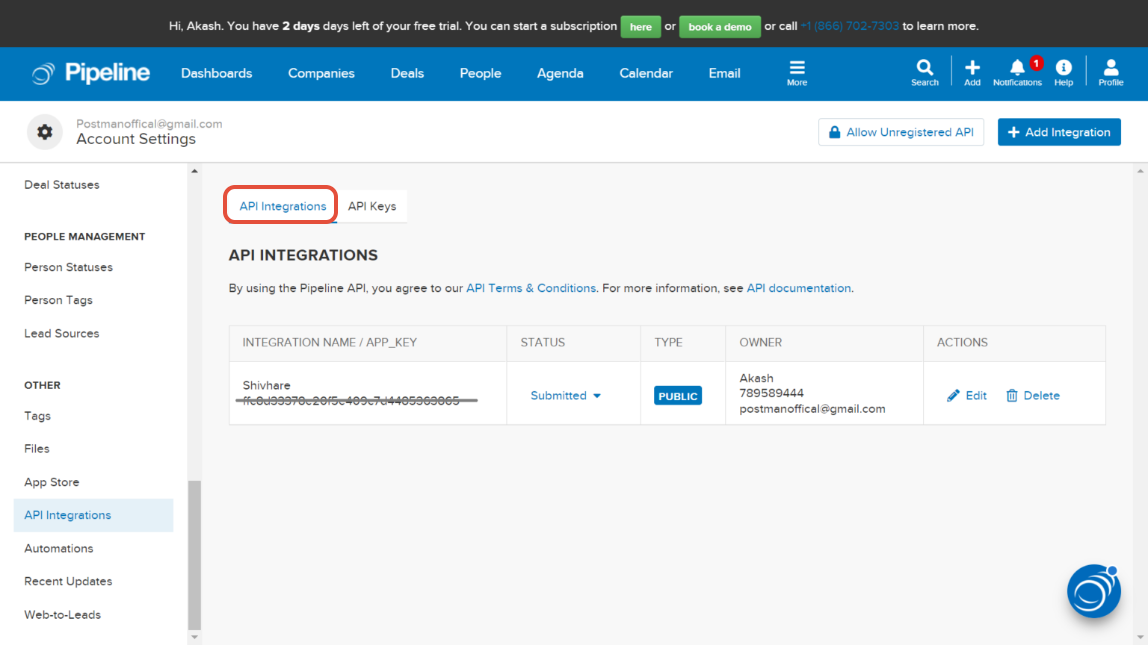
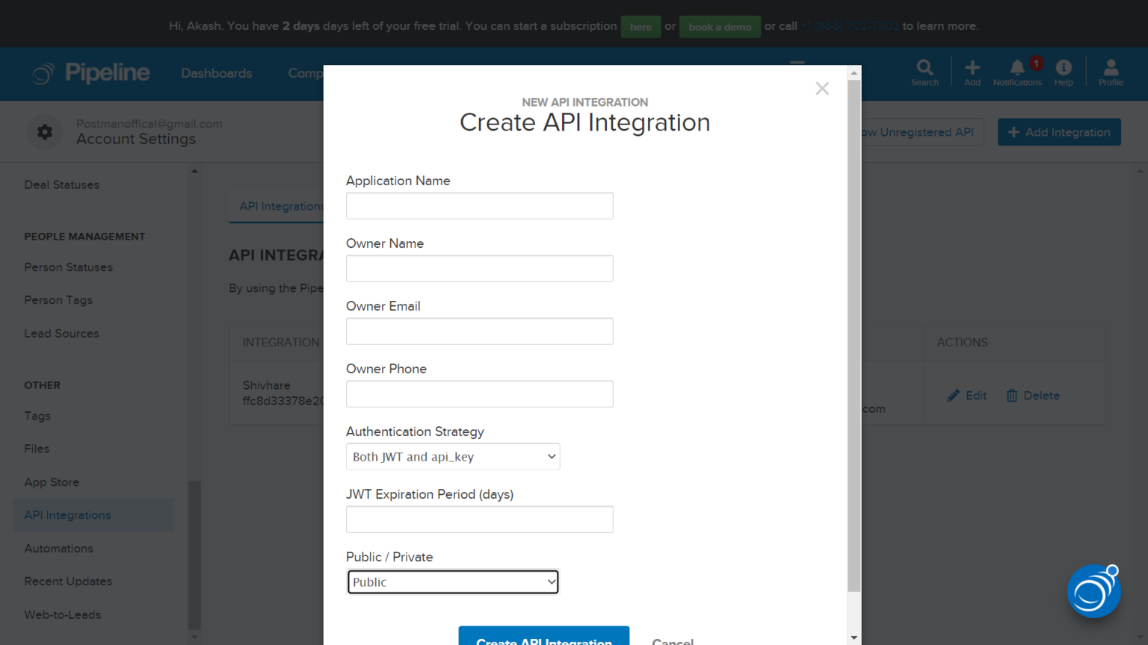
Step 5:- Click Add Integration and fill in the required details to obtain your APP_KEY.
Step 6:- Open Postman to get your API key using the following POST request:
https://api.pipelinecrm.com/api/v3/auth?app_key={appkey}.
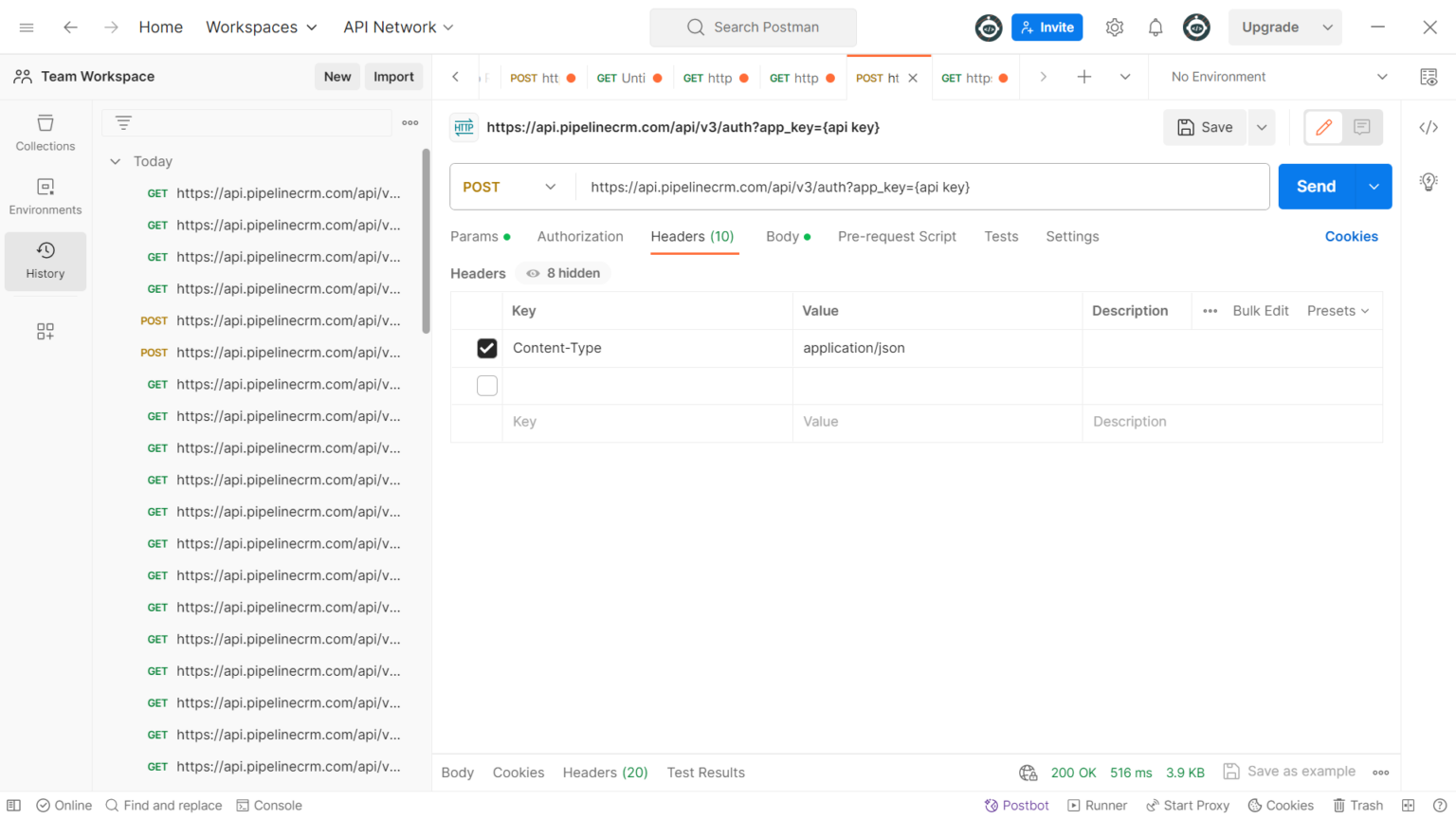
Step 7:- Set the header as Content-Type: application/Json.
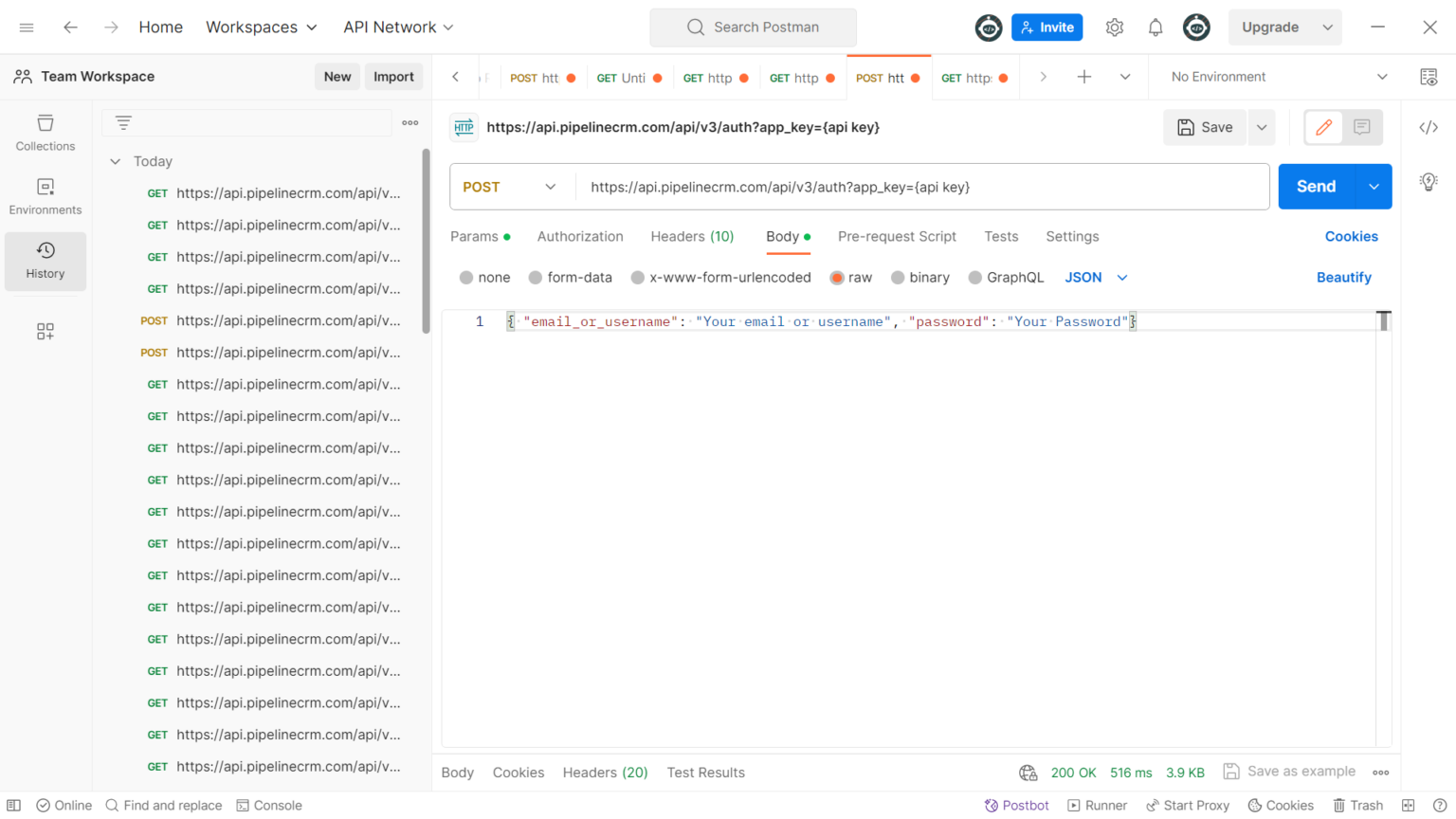
Step 8:- In the body, enter {"email_or_username": "Your Username or Email", "password": "Your Password"} and hit the URL to get your API key.
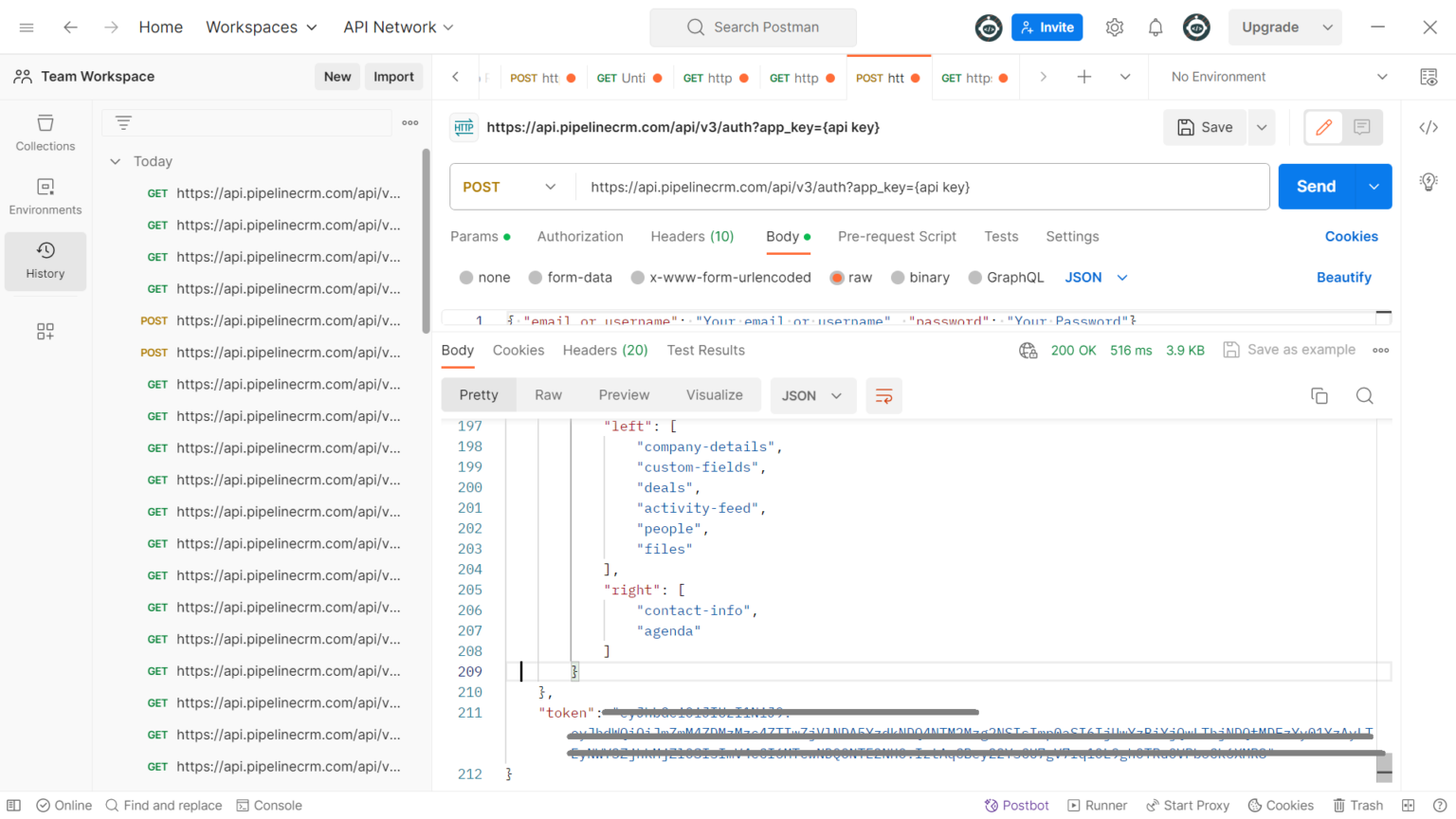
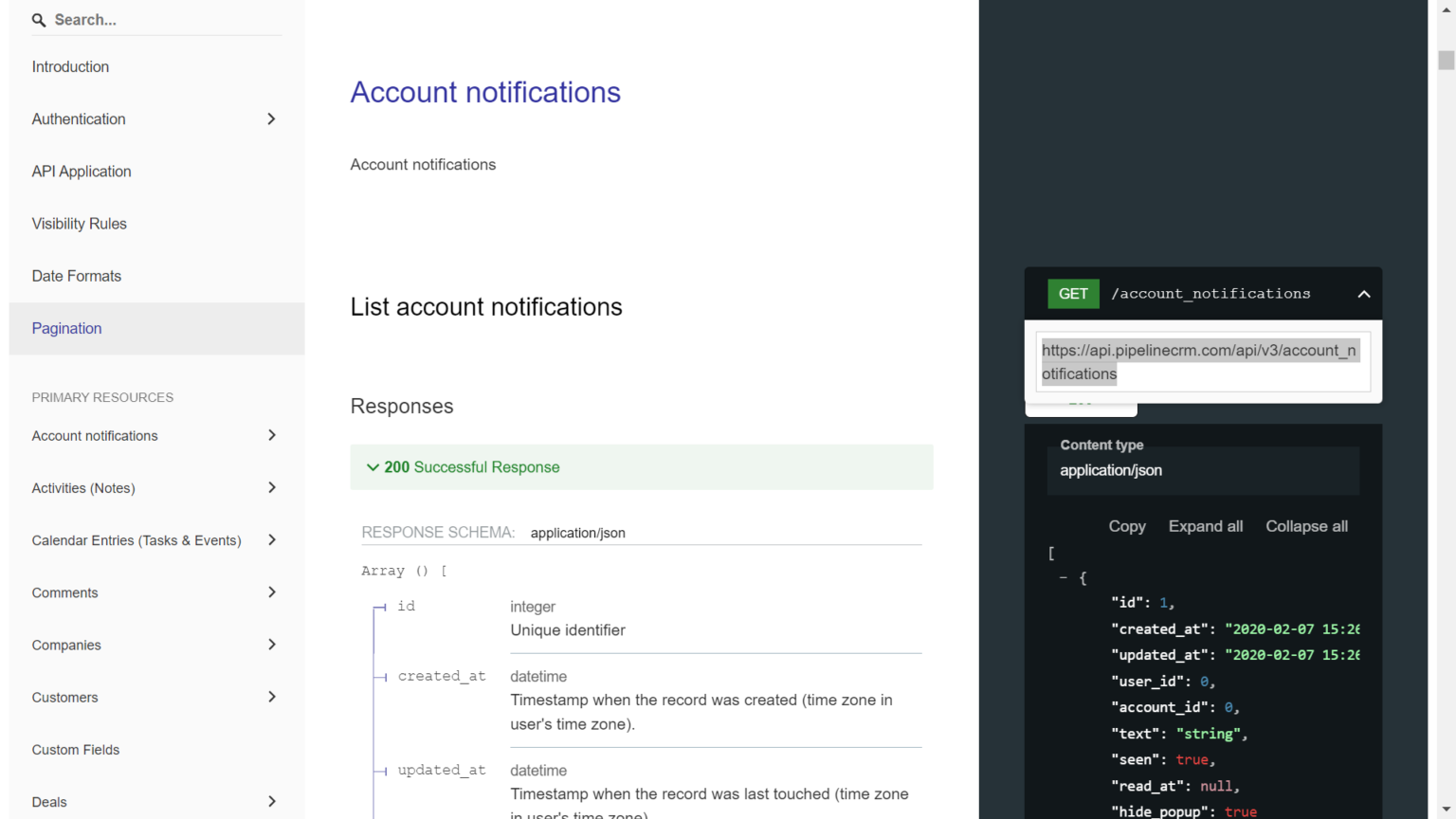
Step 9:- Refer to the Pipeline CRM API documentation to find your API URL: Pipeline CRM API Reference.
Conclusion
This is our strategic guide to integrating with Pipeline. You can explore the app at your convenience, and if you need any further assistance, please contact our Support team.
Was this article helpful?
That’s Great!
Thank you for your feedback
Sorry! We couldn't be helpful
Thank you for your feedback
Feedback sent
We appreciate your effort and will try to fix the article