Welcome, this guide is designed to help you understand the features and functionality of our application, and to provide step‑by‑step instructions for getting the most out of it.
Step 1:- After clicking on "Get It Now" button On the installation screen, you will be presented with three options. Select the one that best fits your business requirements, and then click the "Install" button to proceed.
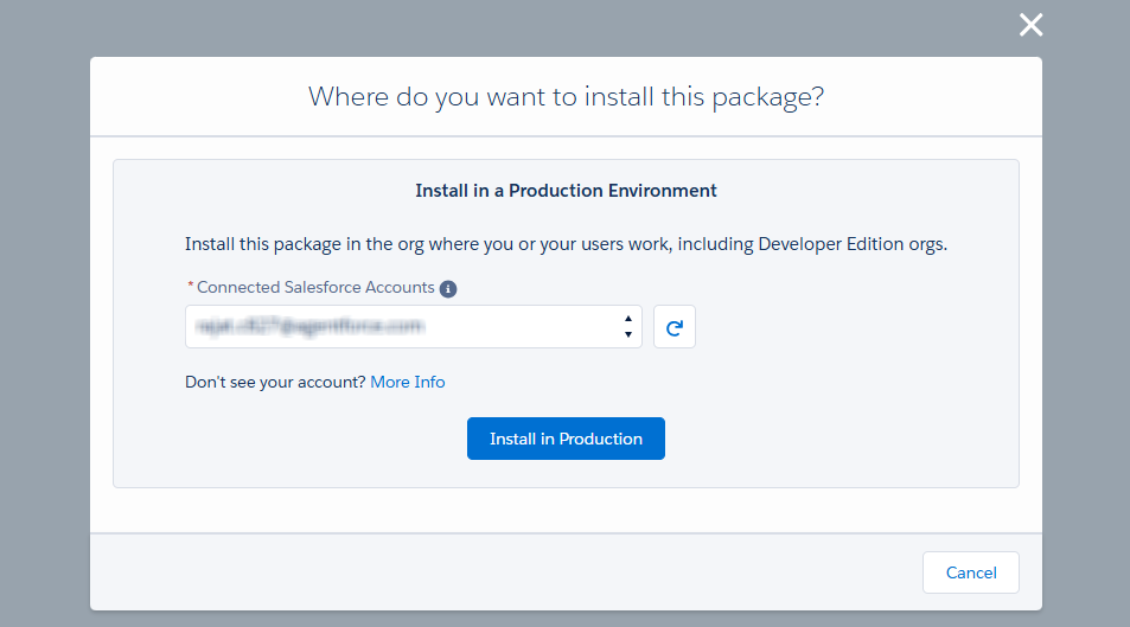

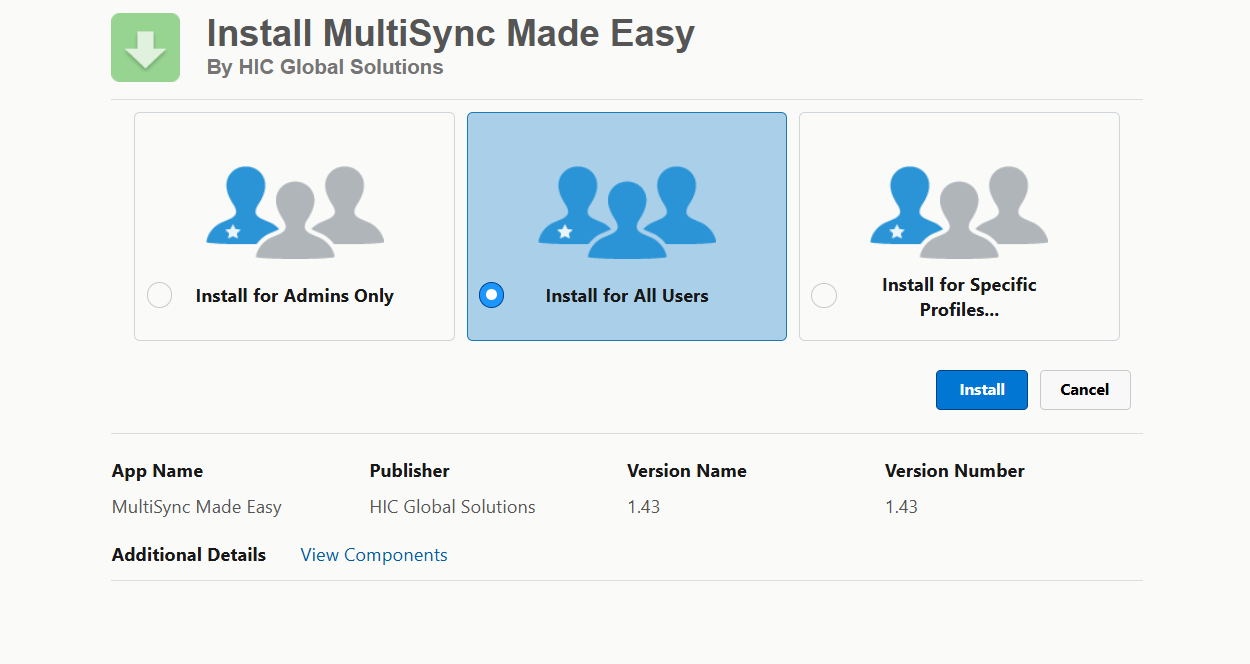
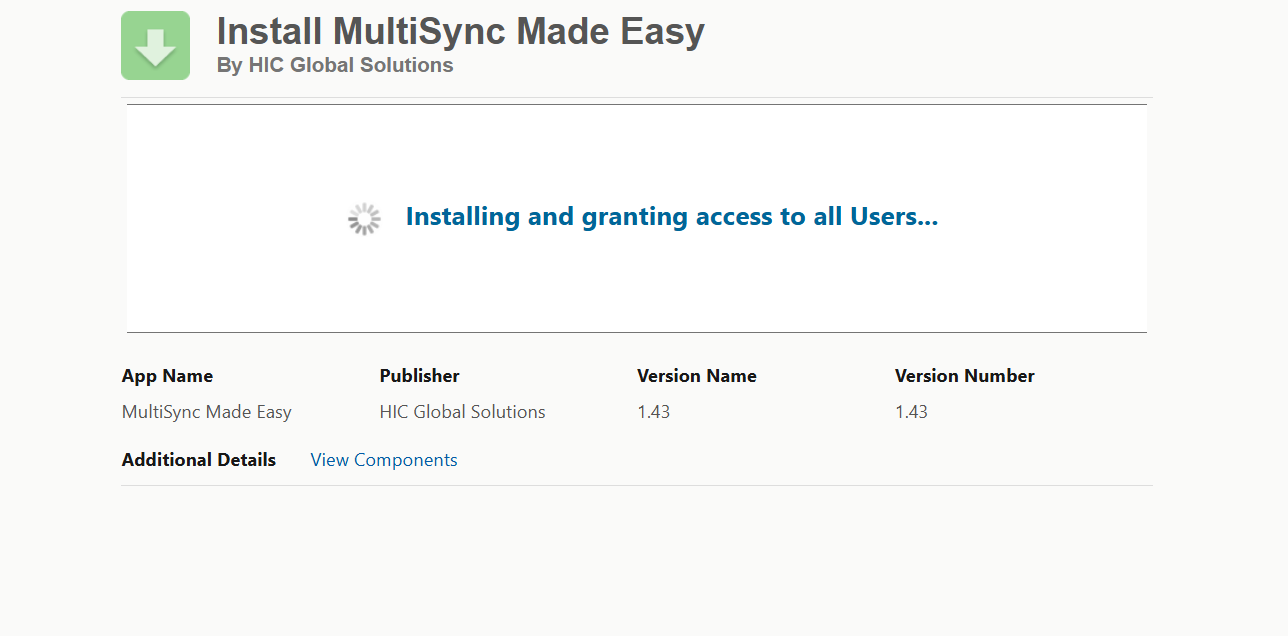
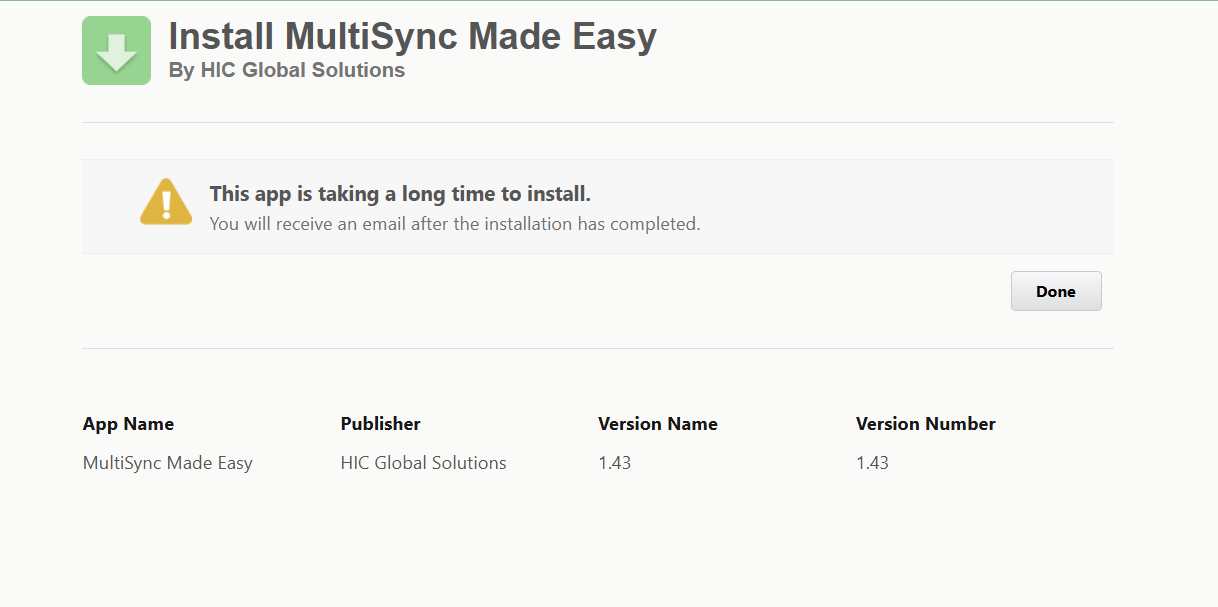
Step 2:- You will see a screen similar to the one shown below and you will receive an email confirmation. Click on the
"Done" button to finalize the setup and make your package ready for use.
Step 3:- Open the App Launcher and search for MultiSync Made Easy.
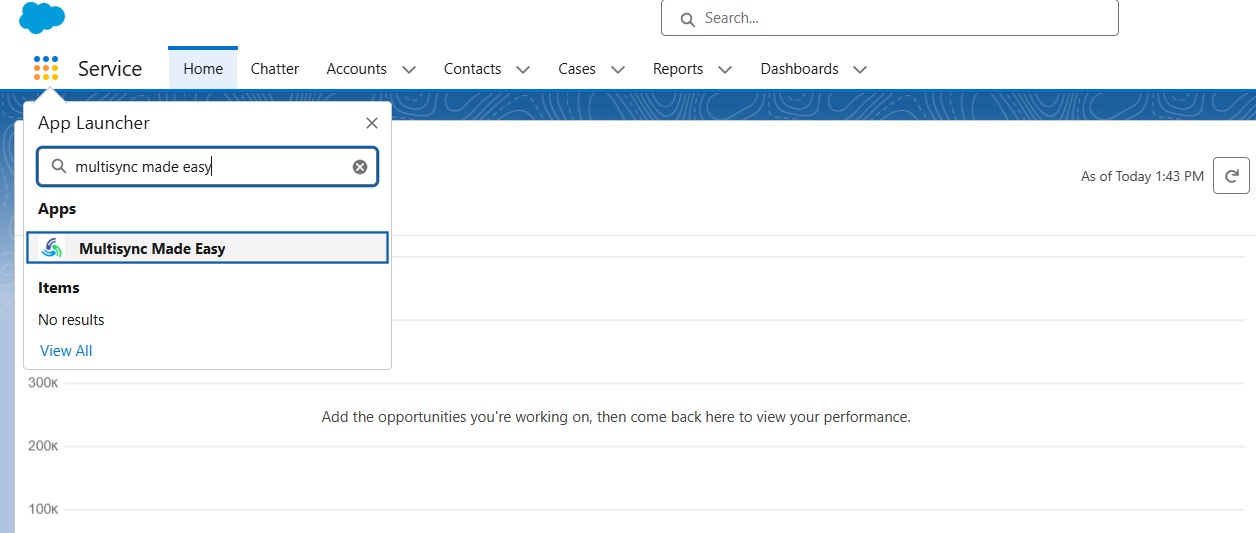
Step 4:- You will now be directed to the Home Page of your application.
Note:
The application supports five main types of authorization methods:
- OAuth 2.0 Authorization Code
- OAuth 2.0 Client Credentials
- OAuth 2.0 Password Credentials
- API Key
- Basic Authentication
All of these authorization methods are fully supported within the application.
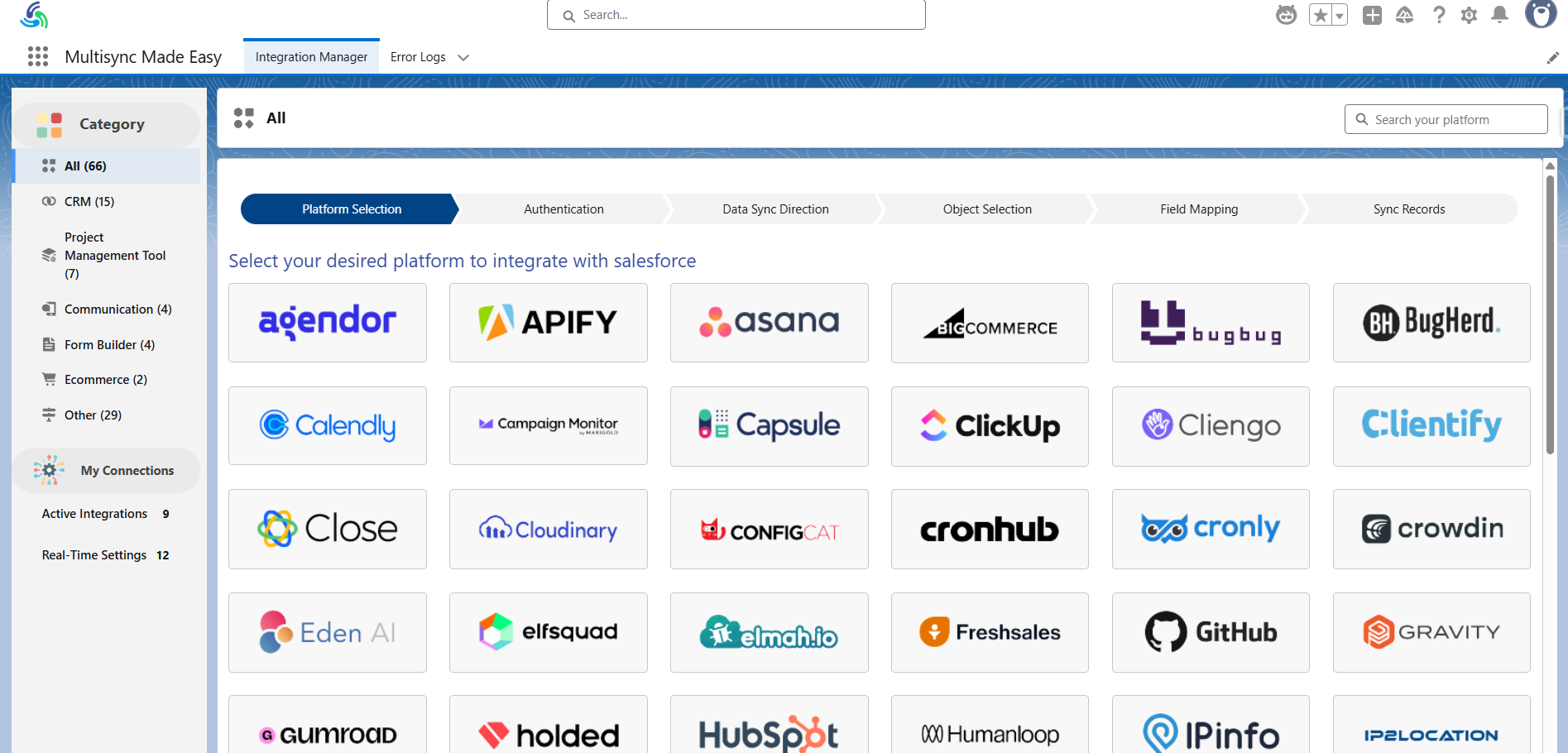
Step 5:- Next, select the platform you want to integrate by clicking the "Search button", and then search for your desired platform.
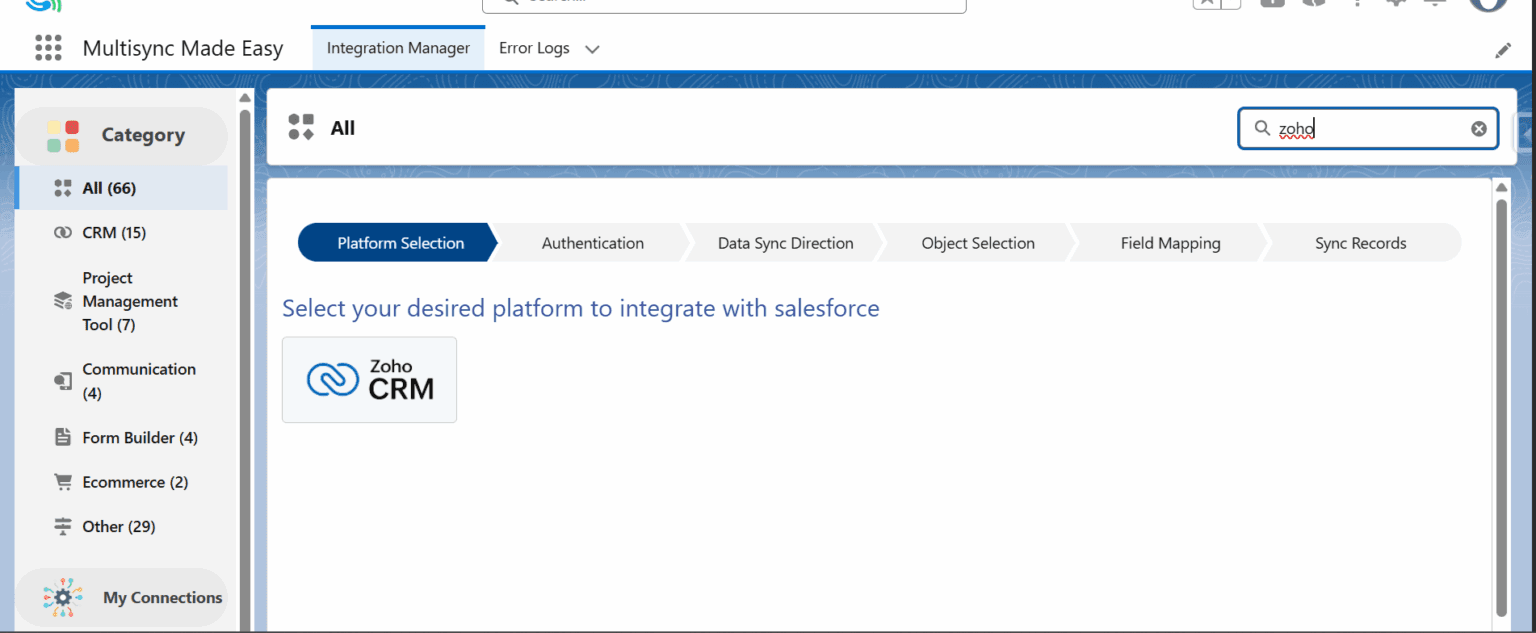
Step 6:- A popup window will now appear on your screen, as shown in the screenshot below.
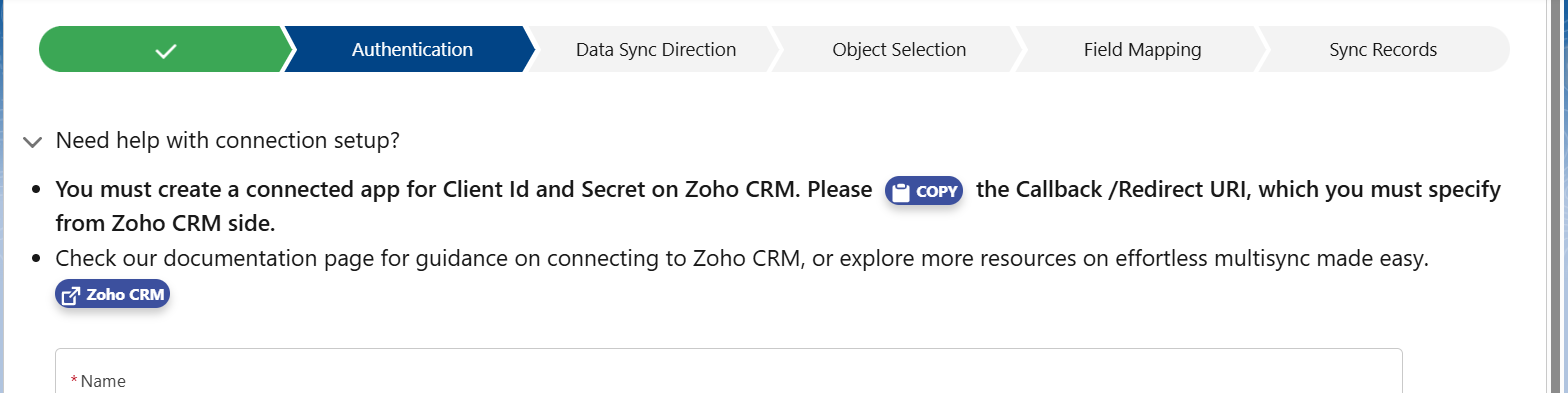
Note:
The "Copy" button shown in the screenshot allows you to copy your callback URL, which is required primarily when using the OAuth 2.0 Authorization Code method. You can check our documentation to review the key steps involved in integrating your preferred platform with MultiSync Made Easy. To proceed, simply select the checkbox to enable the Next button and move forward to the next step.
Step 7:- Enter your credentials for the selected authentication platform, then click the Save and Authenticate button to
proceed.

Step 8:- Provide your authorization credentials and click the Complete Authentication button. Once completed, you will
be redirected back to your Home Page.
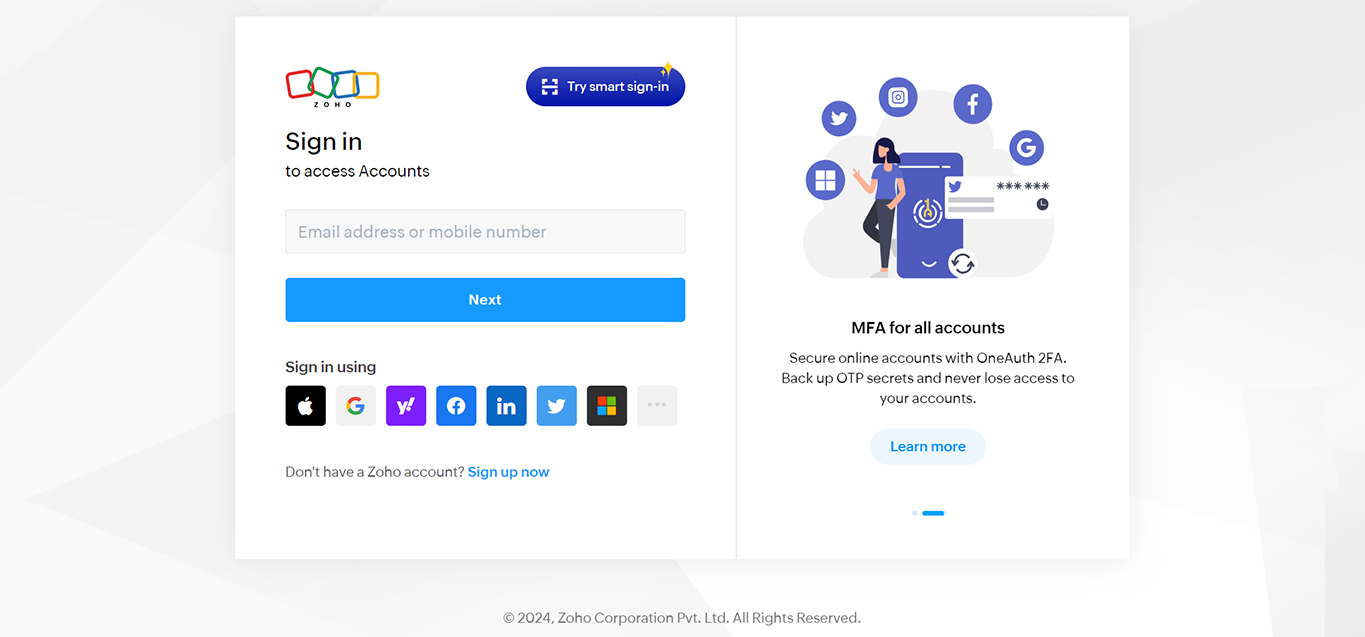
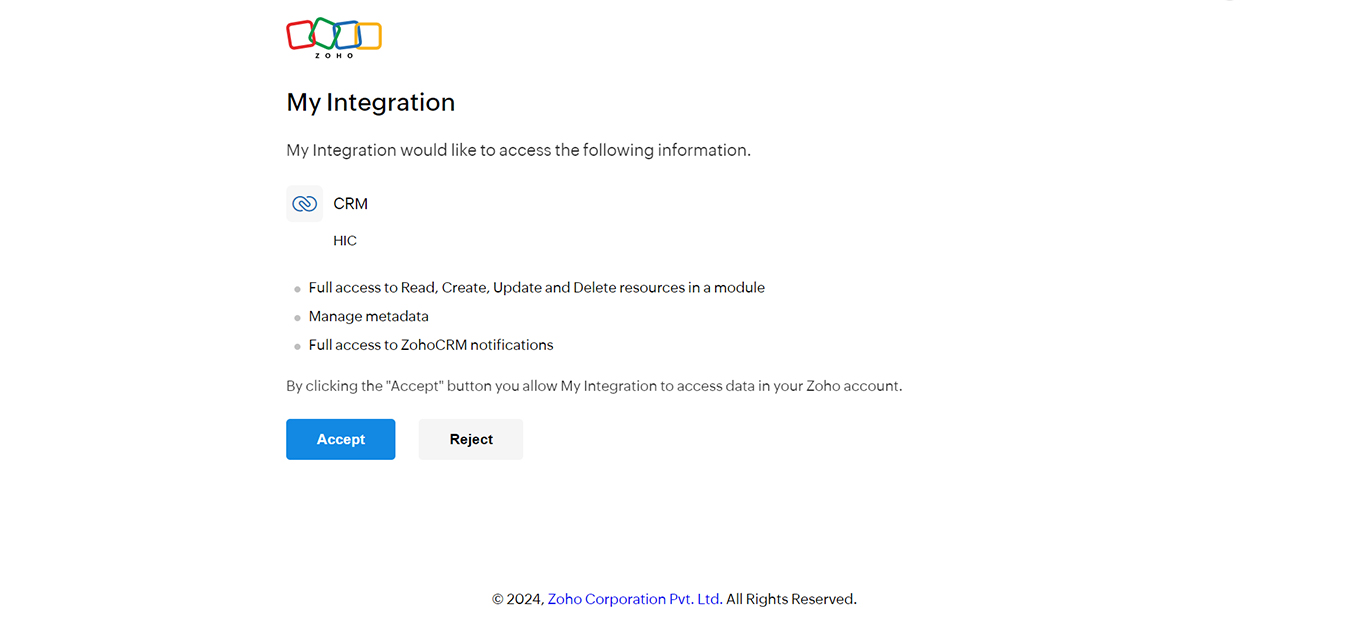
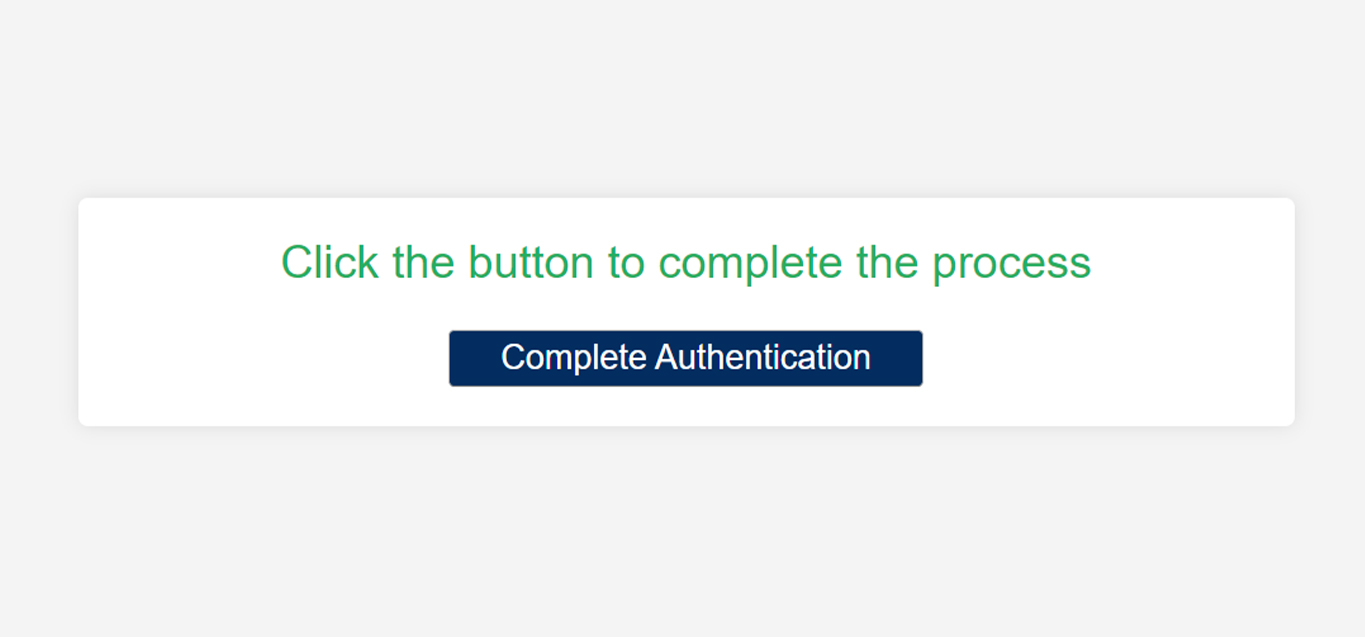
Integration is sucessfully completed. And here is the redirected screen:
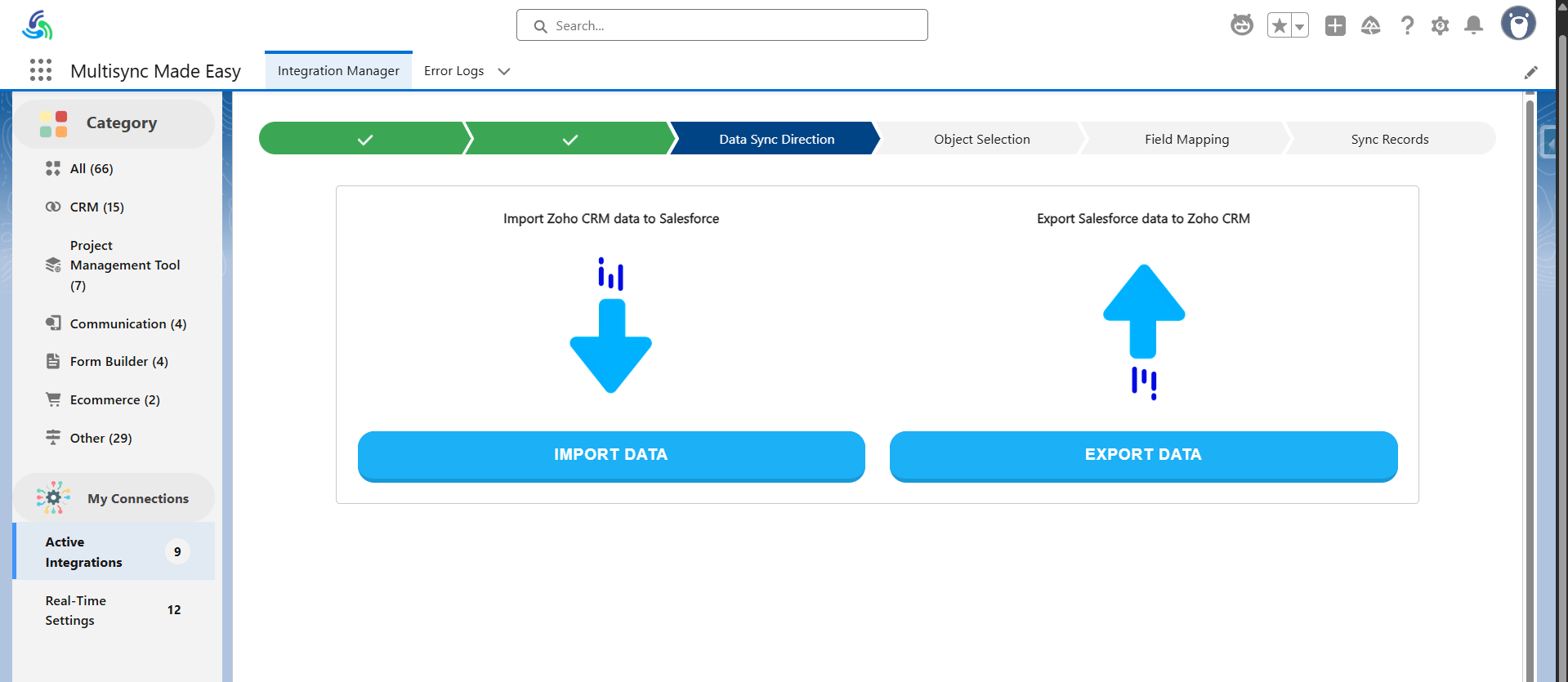
Note:
Your Home Page will appear as shown in the screenshot above and contains four main sections:
1. Import Data: This section allows you to import historical data into Salesforce, providing valuable insights from past records.
2. Export Data: This feature allows real-time synchronization of data from Salesforce to your connected platforms.
3. Real-Time Settings: This feature enables seamless, real-time synchronization of your data to Salesforce across all integrated platforms.
4. Active Integrations: This feature allows you to access all your active integrations with platforms connected to Salesforce.
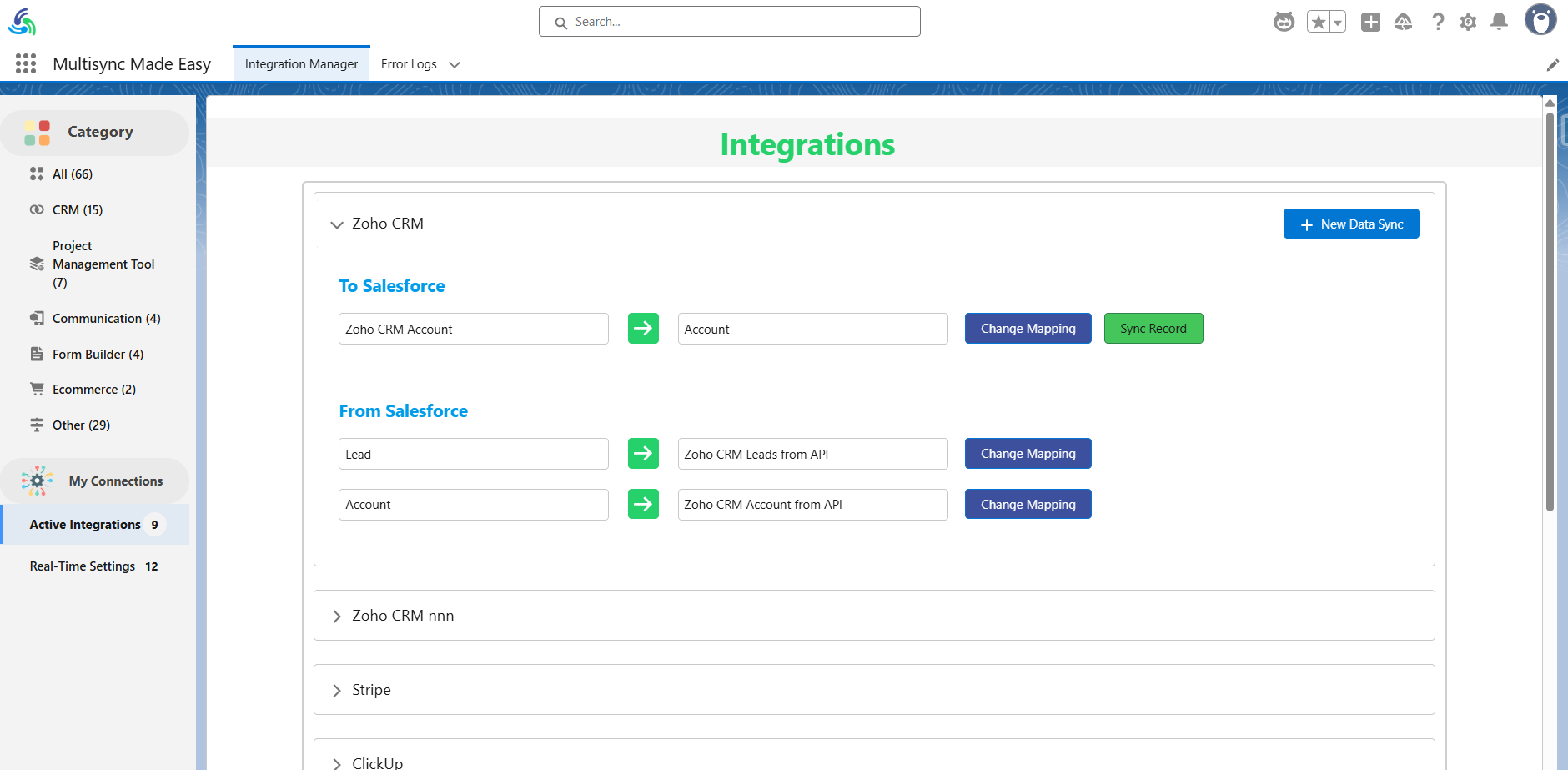
1. Active Integrations User Interface :
This feature allows users to view and manage all their active integrations in one place, making it easy to track and control data transfers from external platforms into Salesforce.
Additionally, all your activated Api will be be displayed below the Integration name.
For the first time you can click on "New Data Sync" button to choose between the Import Data or Export Data functionality to start syncing data between both the platforms.
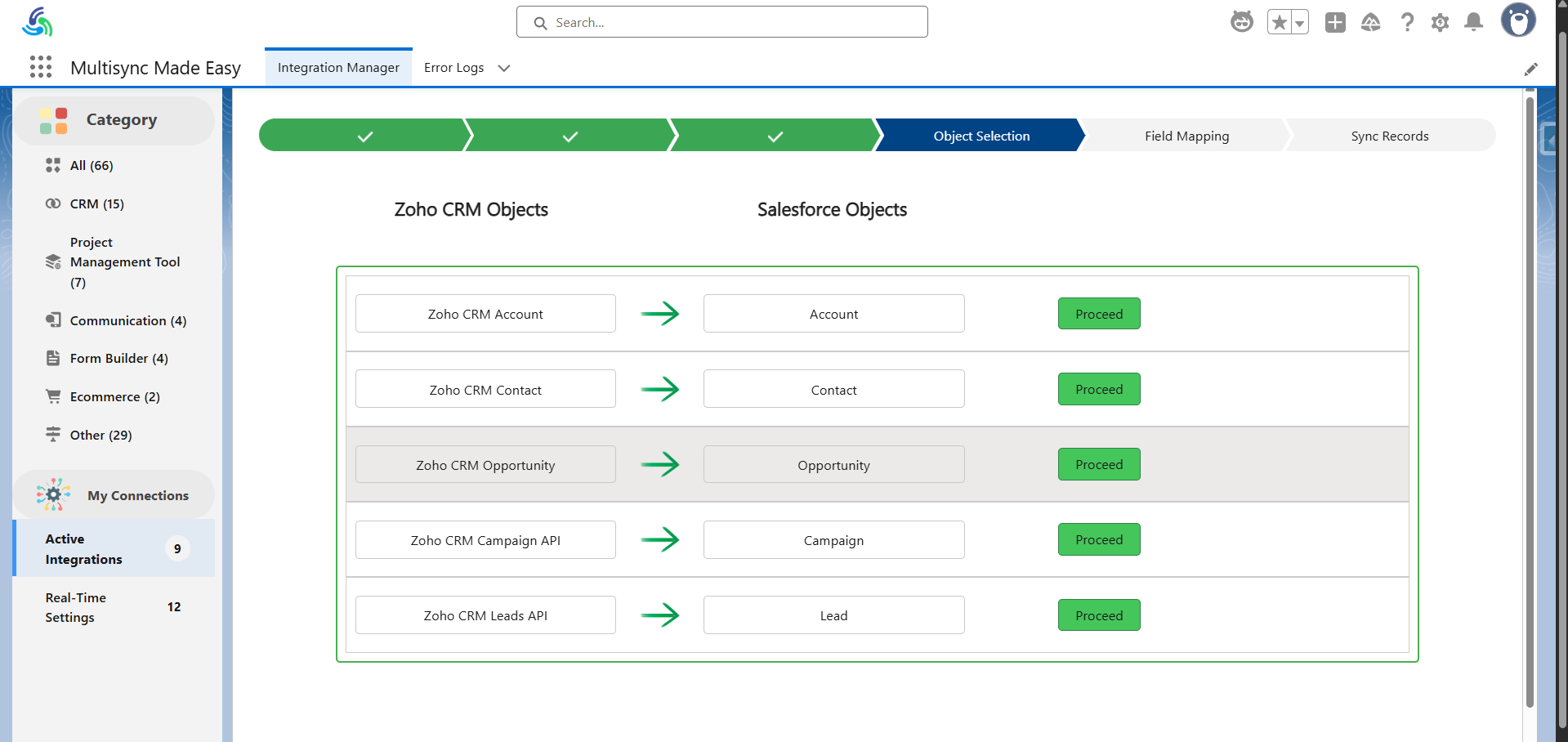
2. Import Data User Interface :
Here, select the proceed button for the object you want to import data into.
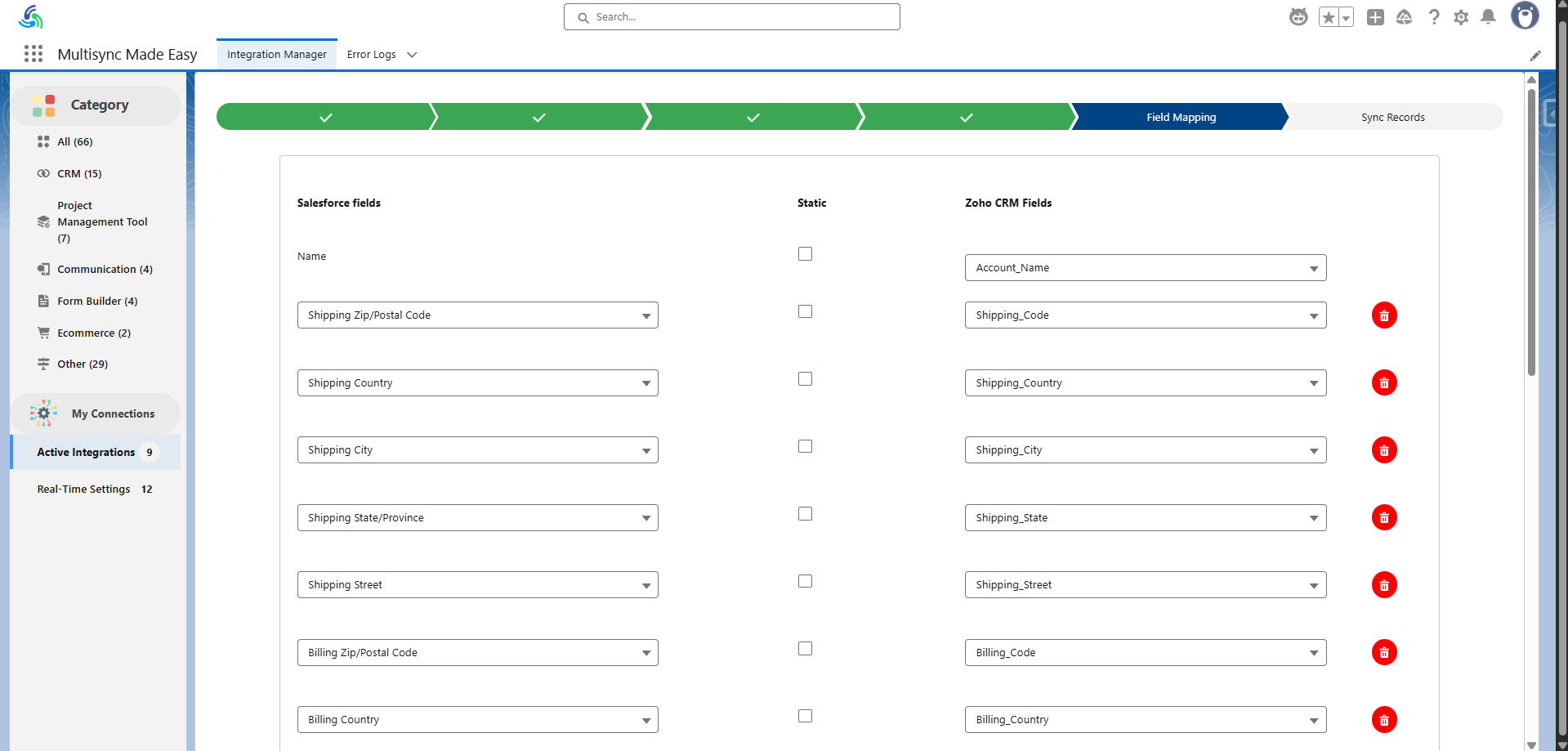
Then, you can change the "Field Mapping" or go with the default one.
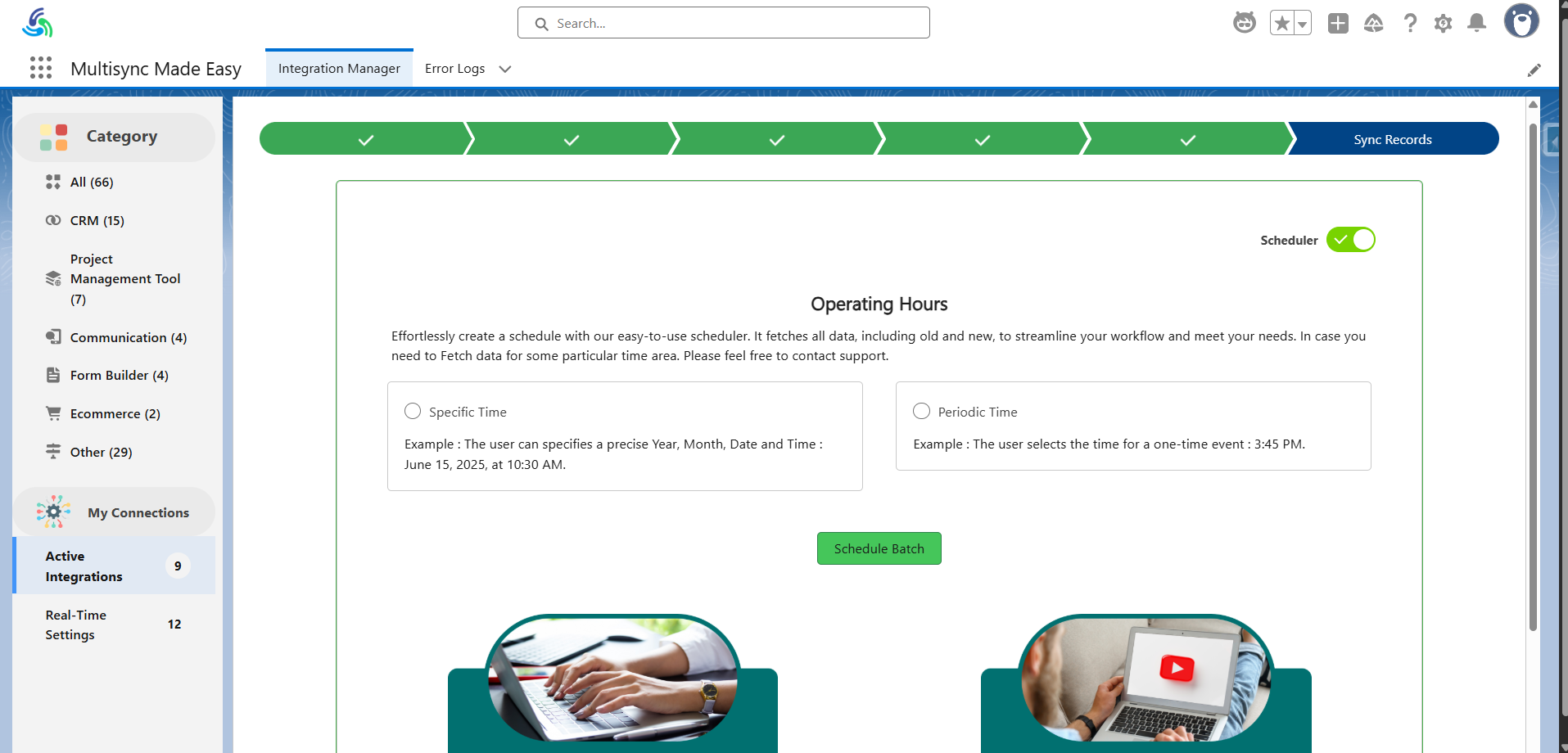
Sync Records: Click the Sync Record button under the import records section in Salesforce. This will insert data from your external web service directly into Salesforce.


Schedule Data Sync: This feature allows you to schedule when data should be inserted into Salesforce. You can also set up periodic schedules to repeat the synchronization at specific intervals.
Note:
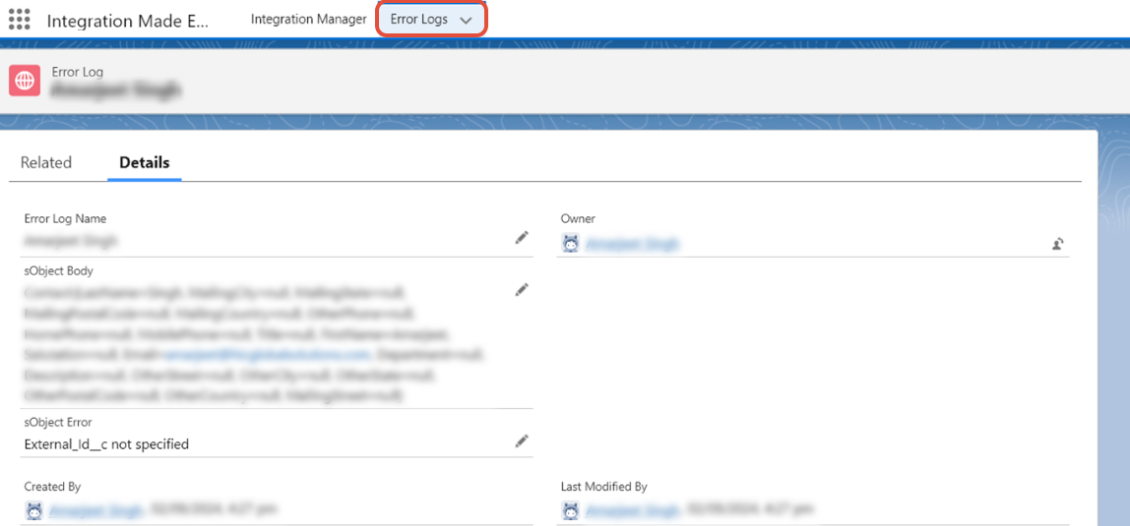
If any errors occur while syncing data into Salesforce, you can review them in the Error Logs tab.
3. Export Data User Interface :
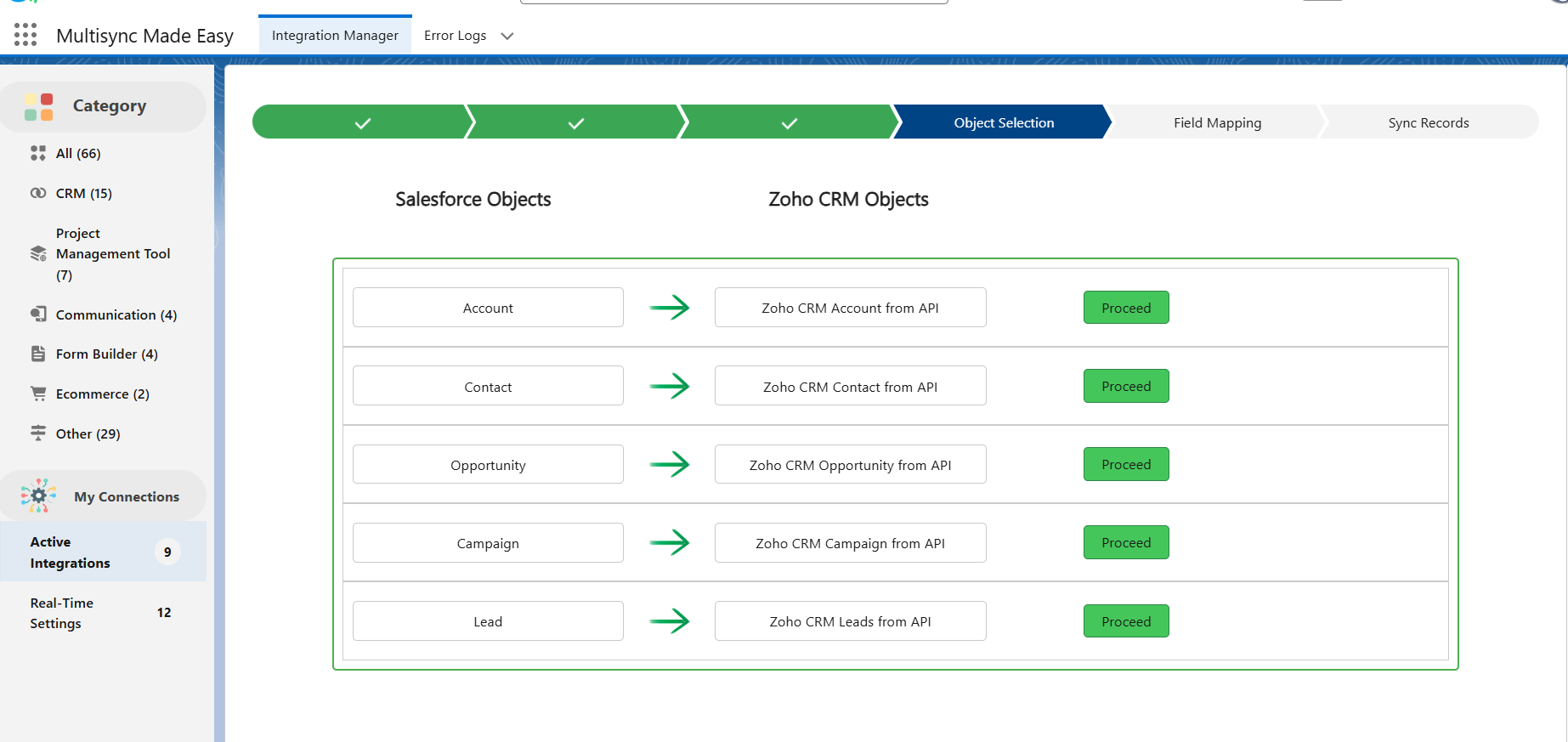
Here, select the "Proceed" button for the object you want to Export data.
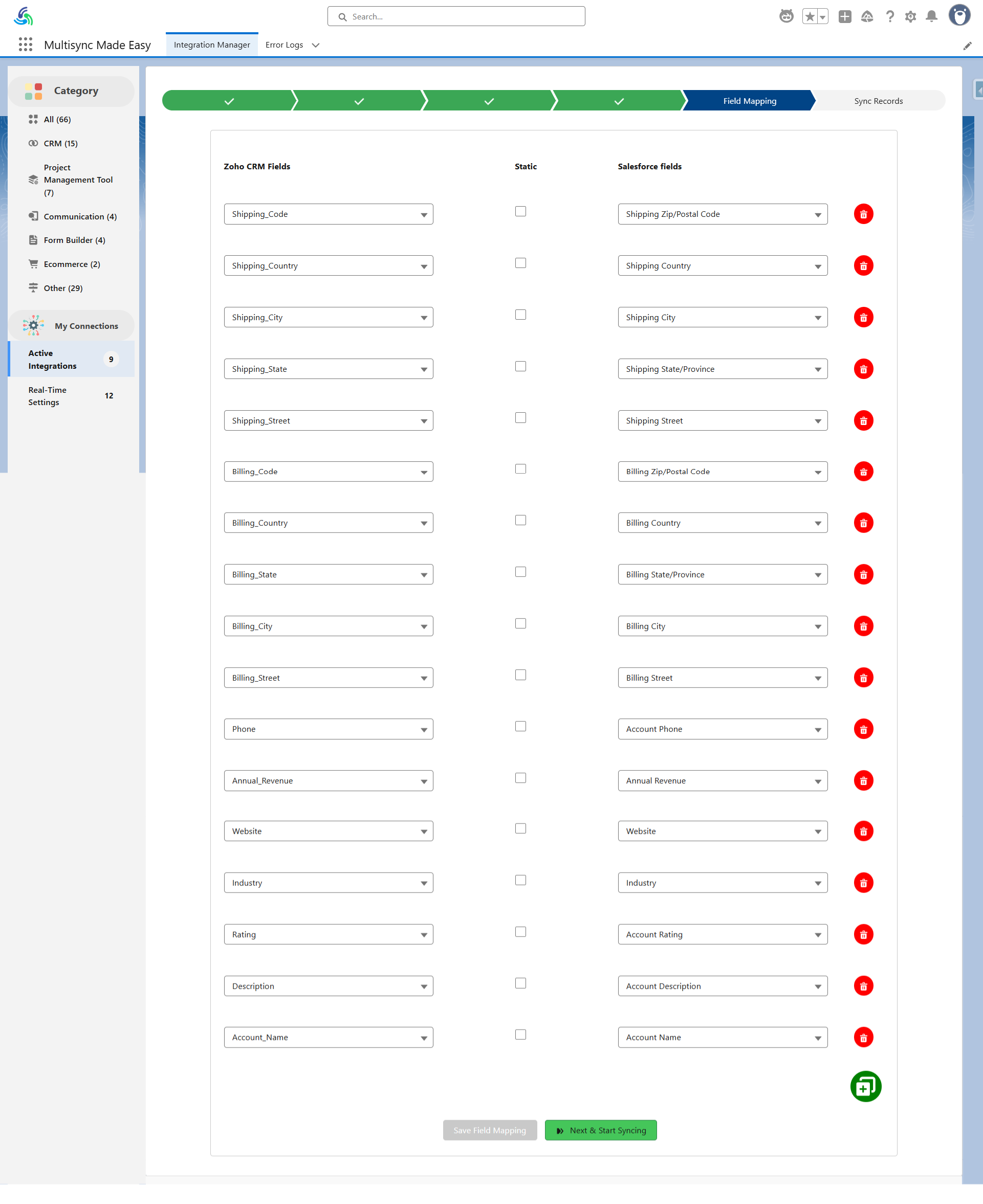
Then, you can change the "Field Mapping" or go with the default one.
When you click on the Enable Real-Time Sync button, ensure that your browser’s popup blocker is disabled.
This will allow the page to redirect properly to the Flow.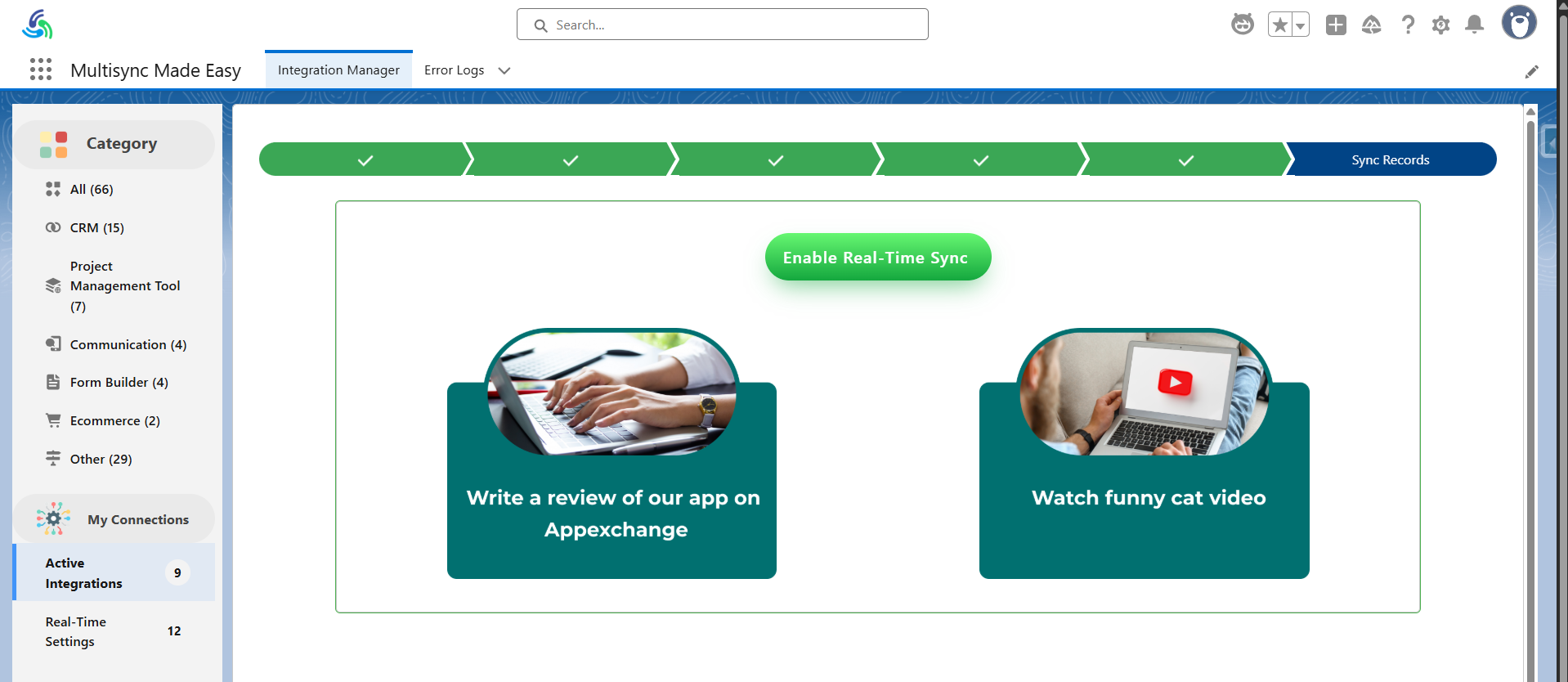
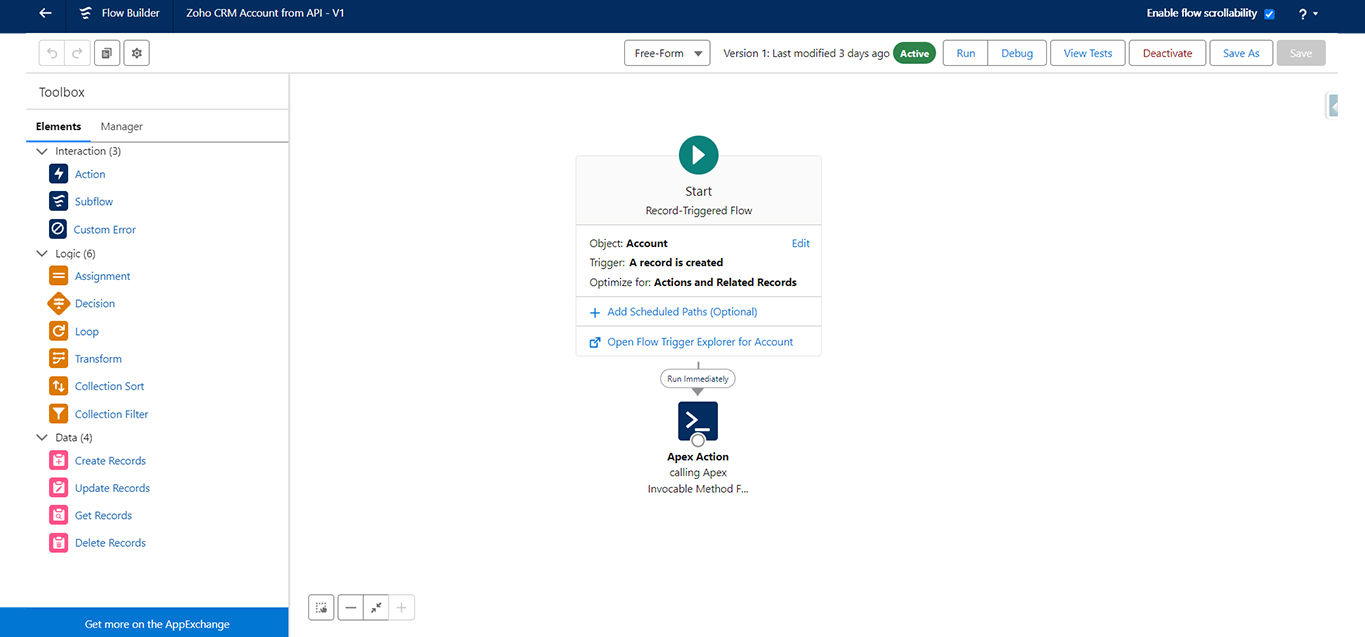
Simply "Activate" the Flow to complete the real-time synchronization setup.
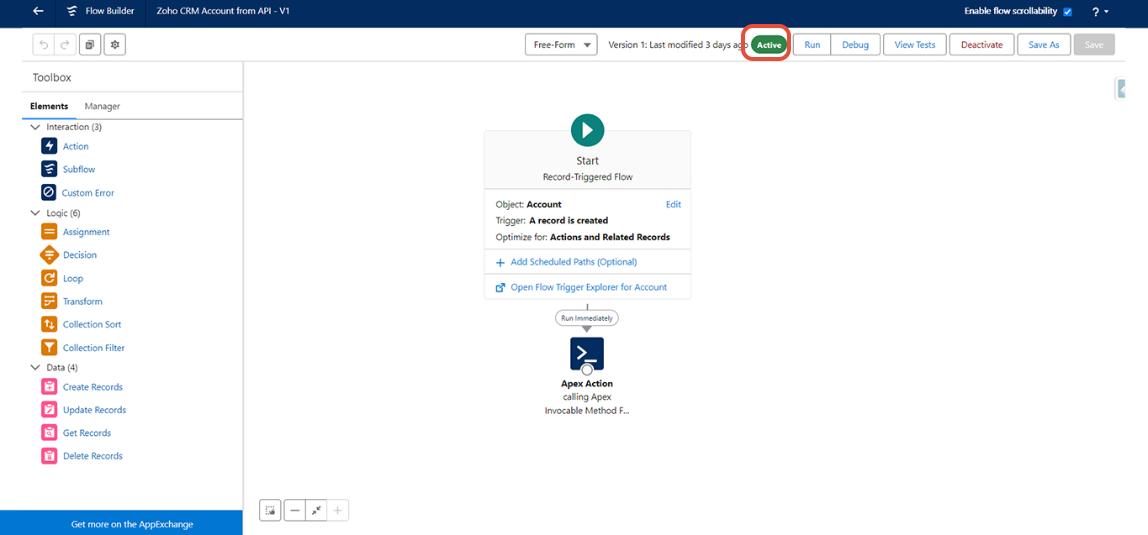
Your real-time synchronization from Salesforce is now set up and ready to use on the selected Object.
Note:
External ID mapping is required for both Import and Export Data functionalities
.
4. Real-Time Settings User Interface :
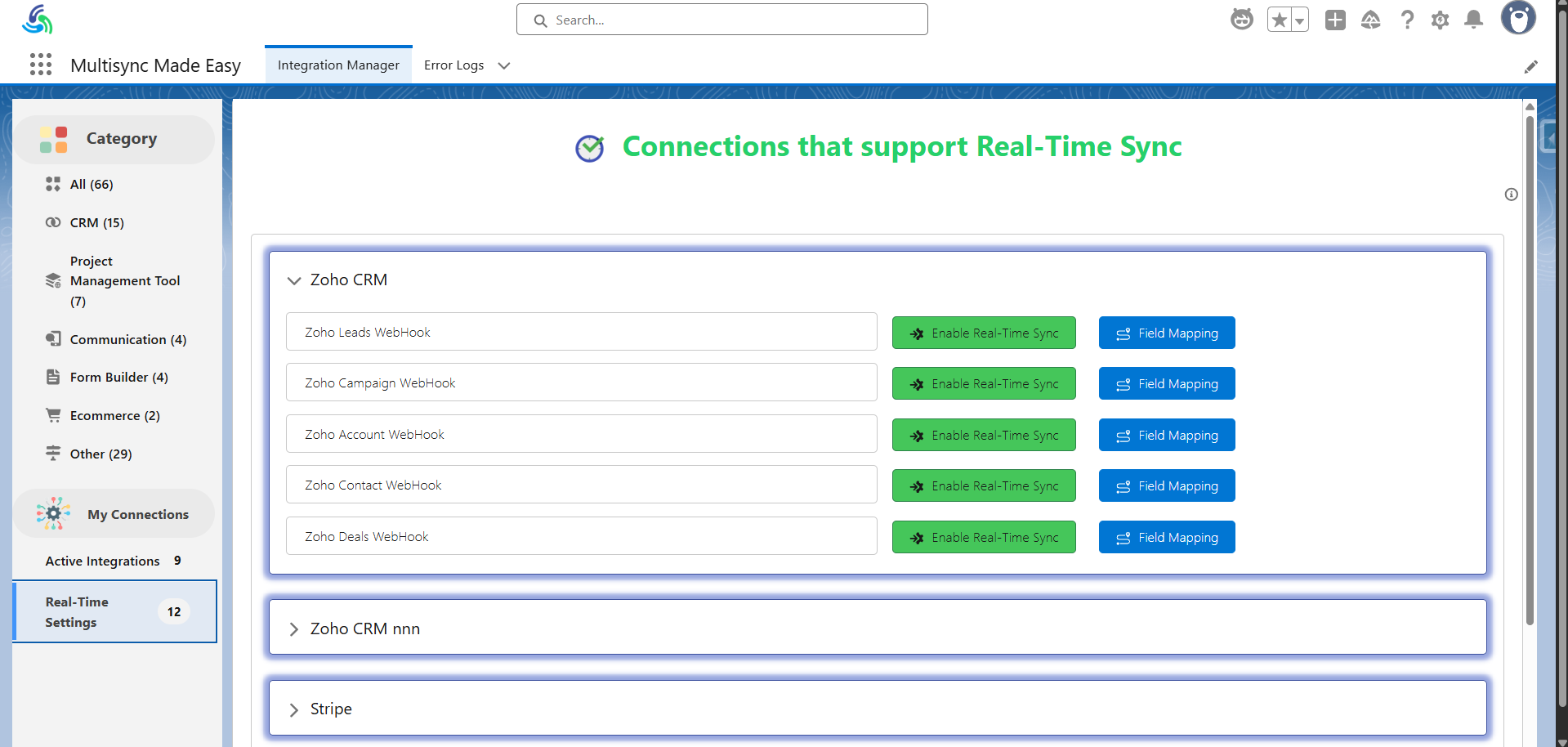
Click on the "Enable Real-Time Sync" button to enable the real time sync functionality for the object you want to sync data.
This functionality will enable the real time synchronization of your data from External platform to Salesforce in real-time.
Additionally, you can change the Field mappings or go with the default one.
To change the field mappings, click on "Field Mapping" button and screen will look like this:
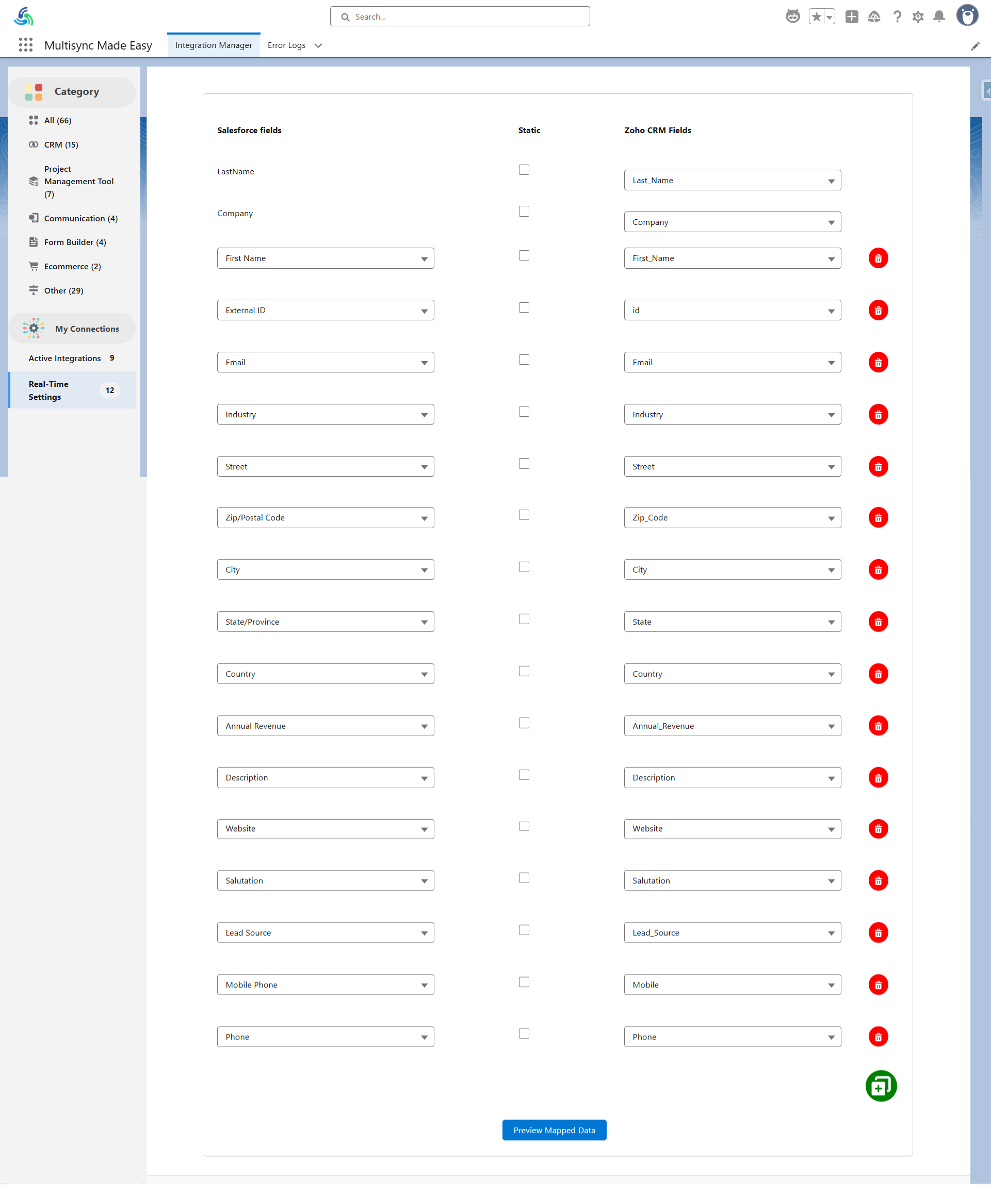
You can now sync preview and Validate the mapped field mappings.
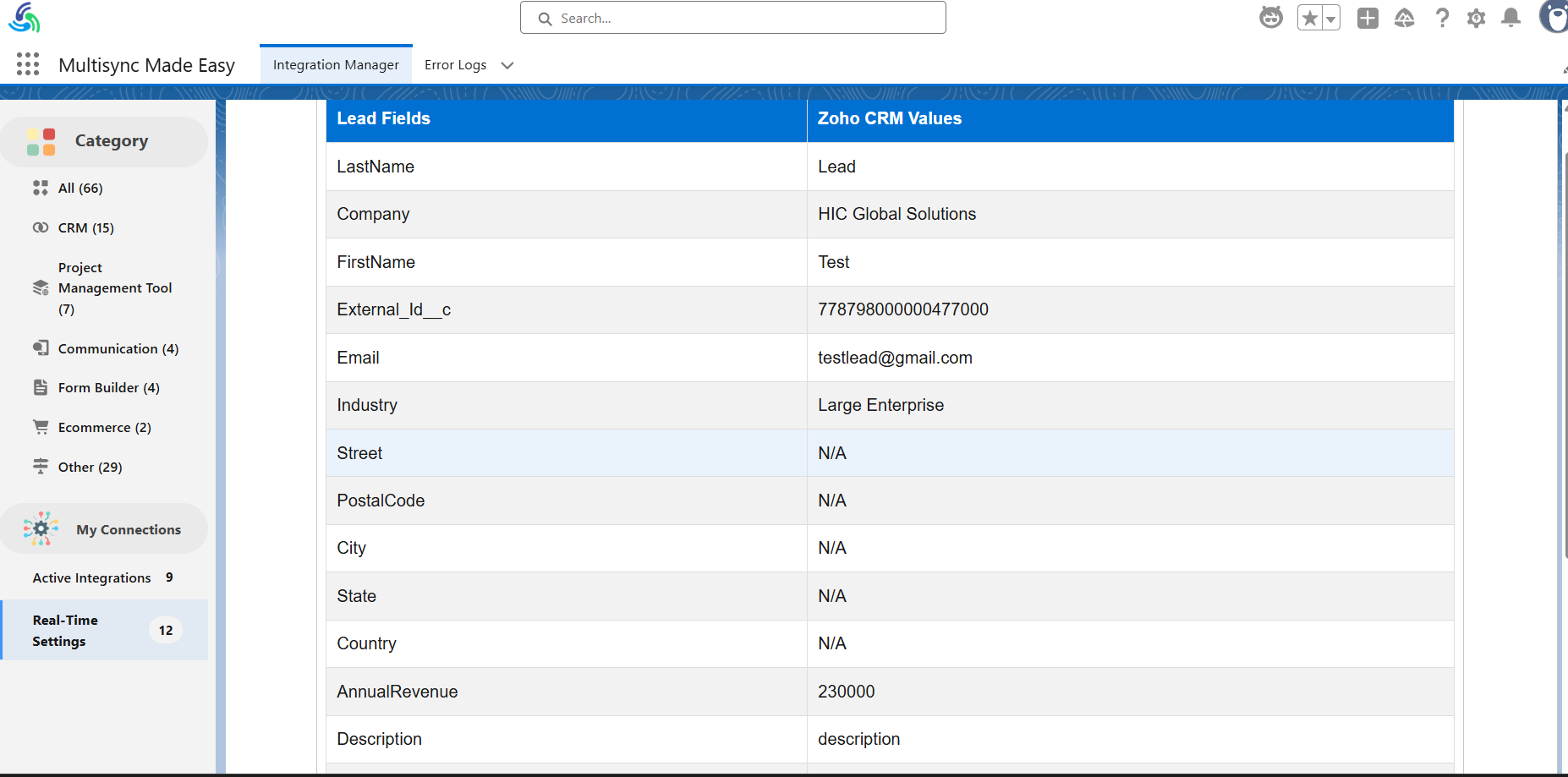

Click on "Save Field Mapping" button to save the validated field mappings and you will be redirected to the final screen screen:
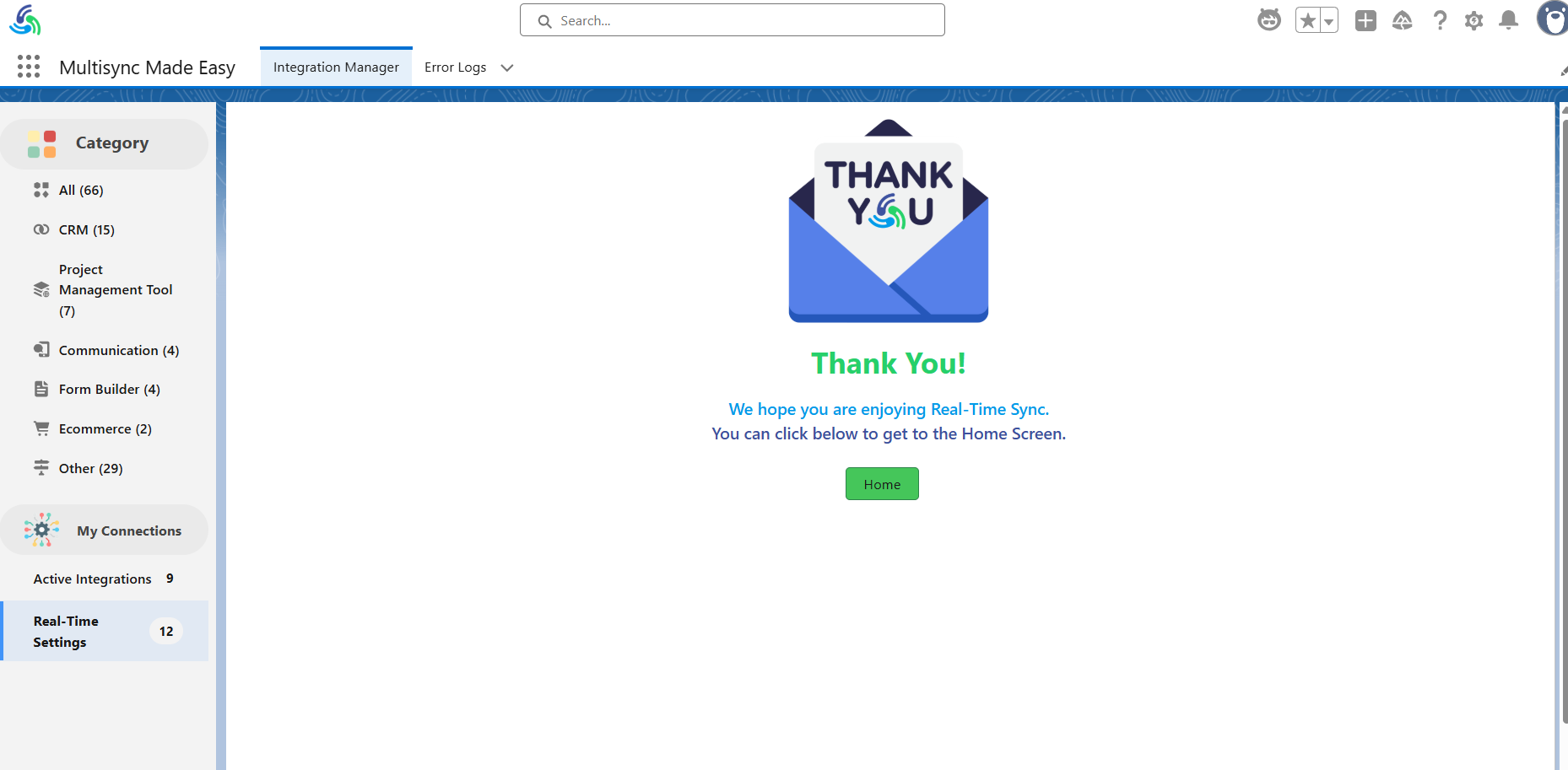
Now, whatever the data will be created on the external platform will be synced in Salesforce in real-time.
To go back to the home page of the Real-Time Settings functionality you can click on "Home" button.
Contact Support
If you encounter any issues or need assistance, please contact our support team. They will guide you and provide the appropriate solution.
Was this article helpful?
That’s Great!
Thank you for your feedback
Sorry! We couldn't be helpful
Thank you for your feedback
Feedback sent
We appreciate your effort and will try to fix the article